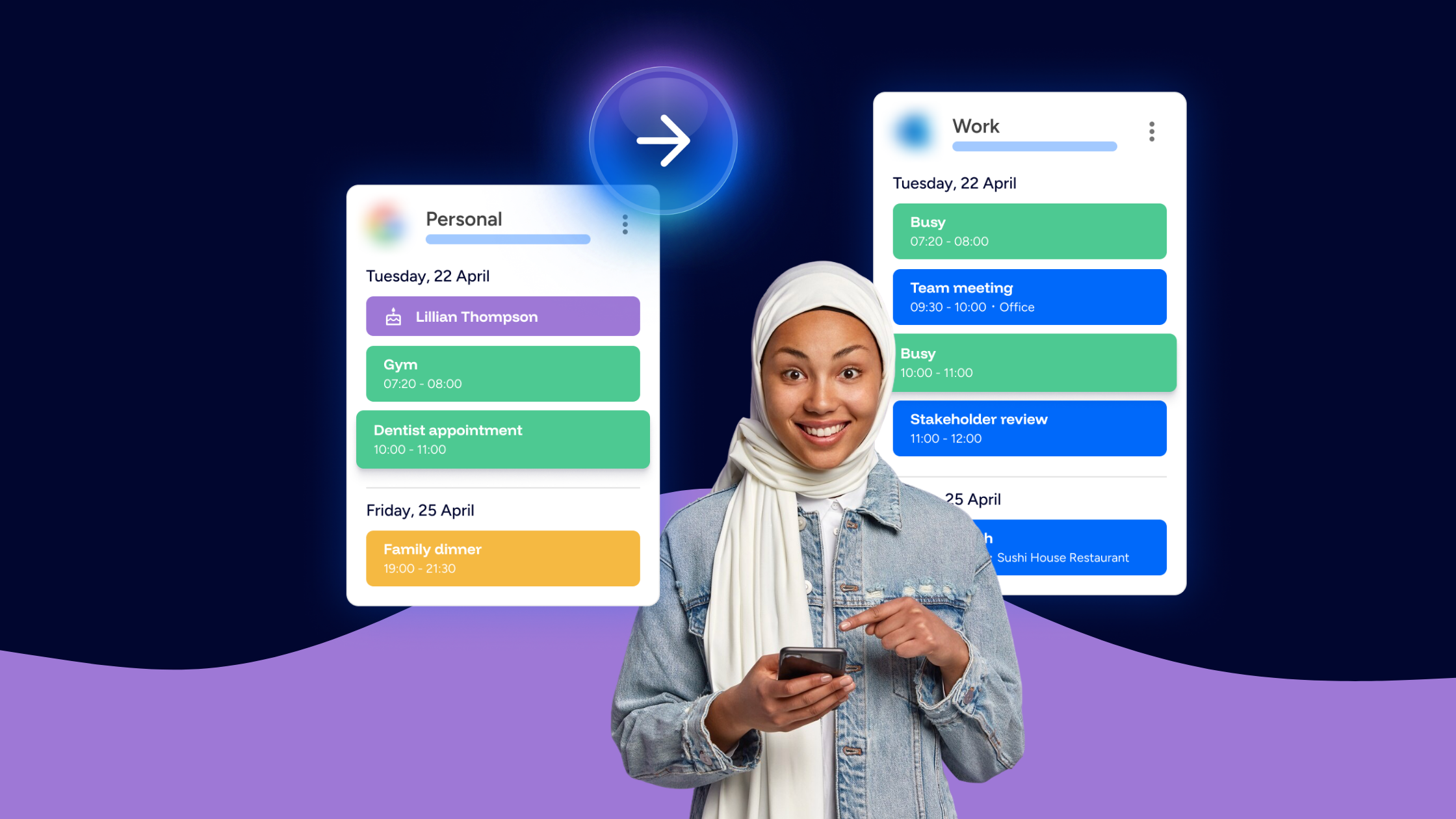
Managing one calendar is relatively simple. Managing a work calendar, personal calendar, client calendar, and perhaps another account for a side project? That's where things get complicated. You start switching between Google and Outlook. You double-check whether a gap is actually free. You manually block personal appointments on your work calendar. And eventually, your calendar system starts creating more work than it saves.
Calendar sync tools are designed to reduce that friction.
They connect calendars across accounts or platforms so events and availability can be reflected elsewhere, depending on your settings. But not every calendar sync tool works in the same way.
In this article, we’ll cover:
- What are calendar sync tools
- Calendar syncing vs calendar sharing
- One way vs two way calendar syncing
- What to look for in a calendar sync tool
- Why real-time calendar sync matters
- Free vs Paid calendar sync tools
By the end, you should have a much clearer idea of what you actually need from a calendar sync tool, rather than simply choosing the one with the longest feature list.
What are calendar sync tools?
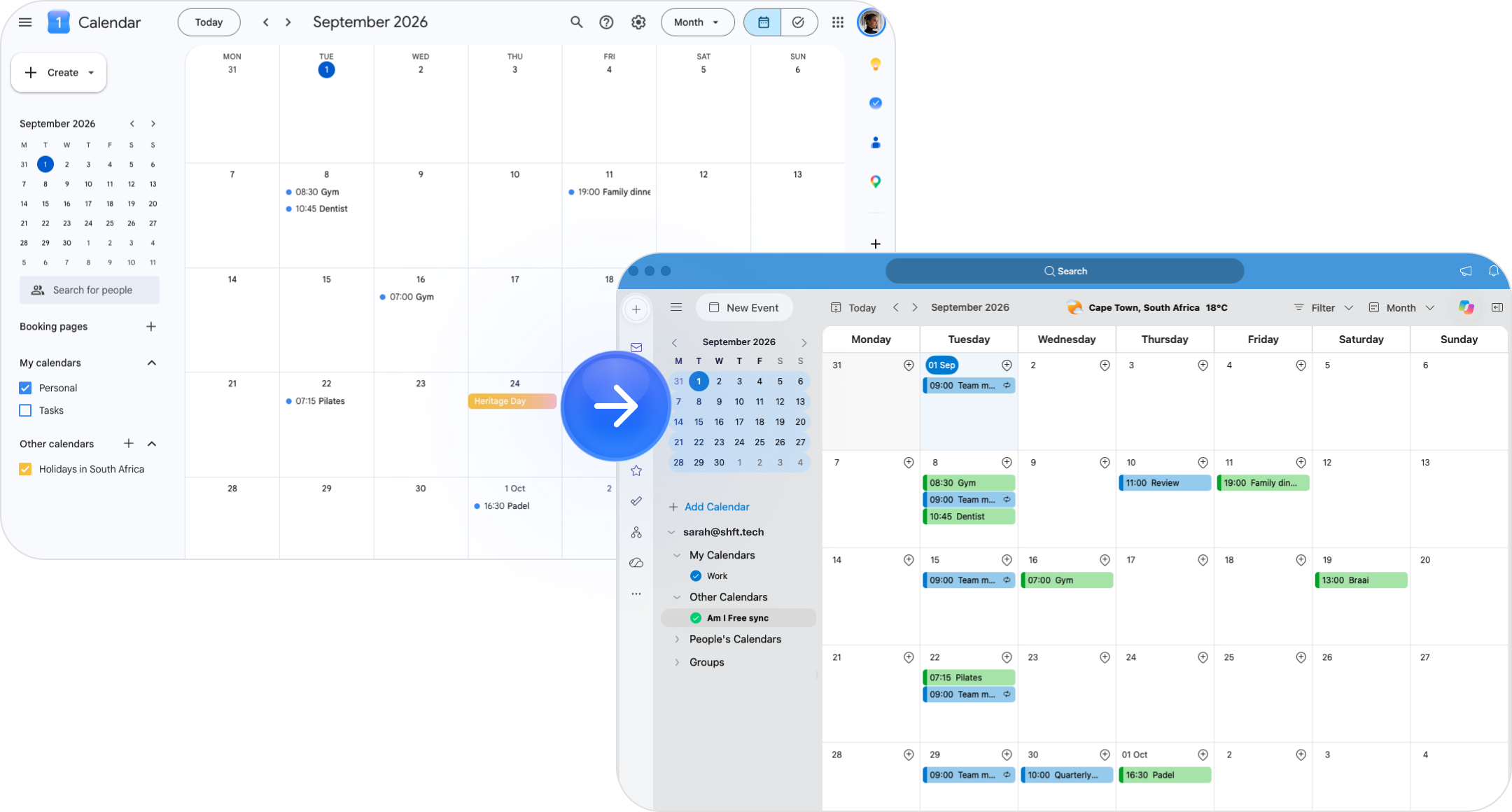
Calendar sync tools connect calendars that would otherwise operate separately. Imagine you have a personal Google Calendar and a Microsoft Outlook calendar for work. Without syncing, an appointment added to Google may have no effect on your Outlook calendar. Someone looking at your work availability could see an open slot, even though you already have somewhere to be.
A calendar sync tool creates a connection between those calendars. Depending on the tool and your settings, information such as the event title, date, time, location, attendees, availability, or other event details can be reflected in the connected calendar.
The goal isn’t necessarily to combine every calendar into one. It’s to make sure the calendars you already use don’t operate blindly.
Calendar syncing vs calendar sharing
Before choosing a tool, it’s important to understand what problem you’re trying to solve.
Calendar sharing gives another person access to a calendar. For example, you might share a family calendar with your partner so you can both see school events, children’s activities, appointments, or other family commitments. Depending on the permissions you choose, they may be able to view the schedule or help add and manage events.
Calendar syncing connects calendars so information can move between them according to your sync setup. For example, you might connect a personal Google Calendar to your work Outlook calendar so a personal commitment is reflected there. The distinction matters because you don’t necessarily need to give someone access to your personal calendar just to keep your work availability accurate. Sometimes sharing is the answer. Sometimes you simply need your calendars to communicate.
One-way vs two-way calendar syncing
Another important consideration is the direction of the sync.
One-way sync
A one-way sync moves event information in one direction. For example: Personal Google Calendar → Work Outlook Calendar. An event created in Google can be reflected in Outlook, depending on your settings, without requiring events from Outlook to be synced back to Google. This can be particularly useful for maintaining boundaries between accounts.
Two-way sync
A two-way, or bi-directional, sync allows information to move in both directions. For example: Google Calendar ↔ Outlook Calendar. This can provide broader visibility, but it also introduces additional complexity. More syncing isn’t automatically better. The right direction depends on what information needs to appear where.
What to look for in a calendar sync tool
A long feature list can make calendar sync tools difficult to compare. Instead, start with a few practical questions.
Does it support the calendars you actually use?
Platform support should come first. If your life is split between Google and Microsoft, for example, the tool needs to support both. There’s little value in advanced functionality if the basic connection you need isn’t available.
How quickly does it sync?
Sync frequency matters more than it might initially seem. If your availability changes but another calendar doesn’t update quickly, there’s a window where someone could schedule over that time. For frequently changing schedules, real-time calendar sync can significantly reduce this uncertainty.
How many calendars can you connect?
Two calendars may be enough today. But consider whether your setup includes, or may eventually include, multiple work, personal, client, or project calendar accounts. Connection limits become much more important as your schedule grows.
Can you control what gets synced?
Not every event needs to reveal everything. Look at whether the tool allows you to control how synced events appear and what information is carried across. Depending on the product, settings may cover areas such as:
- Event visibility
- Availability
- Event reminders
- Colours
- Event identifiers
- Event details
The more personal your calendars are, the more important these controls become.
Is it easy to change your setup?
Your calendar system shouldn’t become another system you have to manage constantly. A useful calendar sync tool should make it relatively simple to add connections, change sync preferences, or remove a sync when you no longer need it.
Why real-time calendar sync matters
A sync is only useful if you can trust it. Imagine someone books a meeting in your Outlook calendar at 10:00. If your other calendar doesn’t reflect that change until much later, it may continue showing 10:00 as available. Now you have a gap between your real availability and what your calendar says. Real-time syncing helps close that gap. When changes are reflected quickly across connected calendars, you spend less time:
- Checking whether a calendar has updated
- Manually blocking the same time elsewhere
- Comparing multiple apps
- Fixing avoidable scheduling conflicts
The best calendar sync often feels invisible. You stop thinking about whether the system is working because your availability simply stays aligned.
Privacy should be part of your calendar setup
Connecting calendars doesn’t mean every detail should travel everywhere. A personal calendar might contain appointments, family commitments, locations, or other information that doesn’t belong in a work context. Before setting up a sync, consider:
- Which calendar is the source?
- Which calendar will receive the event?
- What event information needs to appear?
- Who can see the destination calendar?
- Do people need the details, or simply an accurate representation of your availability?
A useful rule is to share or sync only what is necessary. Calendar clarity shouldn’t come at the expense of personal boundaries.
Free vs paid calendar sync tools
You don’t necessarily need to pay for calendar syncing. If you have a straightforward setup, perhaps one personal calendar and one work calendar, a free plan may provide everything you need. The question is whether your requirements have outgrown the limits. Paid calendar syncing tends to become more useful when you:
- Manage several calendar accounts
- Need multiple syncs
- Want greater control over sync preferences
- Depend heavily on accurate availability for work
- Regularly coordinate across different platforms
Start with the simplest setup that solves your problem. Scale when your schedule actually requires it.
Where Am I Free fits
Am I Free is built around a straightforward idea: your calendars can remain separate without operating separately. It supports Google and Microsoft calendars with real-time syncing. The Free plan is designed to make basic calendar syncing accessible and includes:
- Up to 2 calendar connections
- 1 one-way sync
- Real-time syncing
- Google and Microsoft support
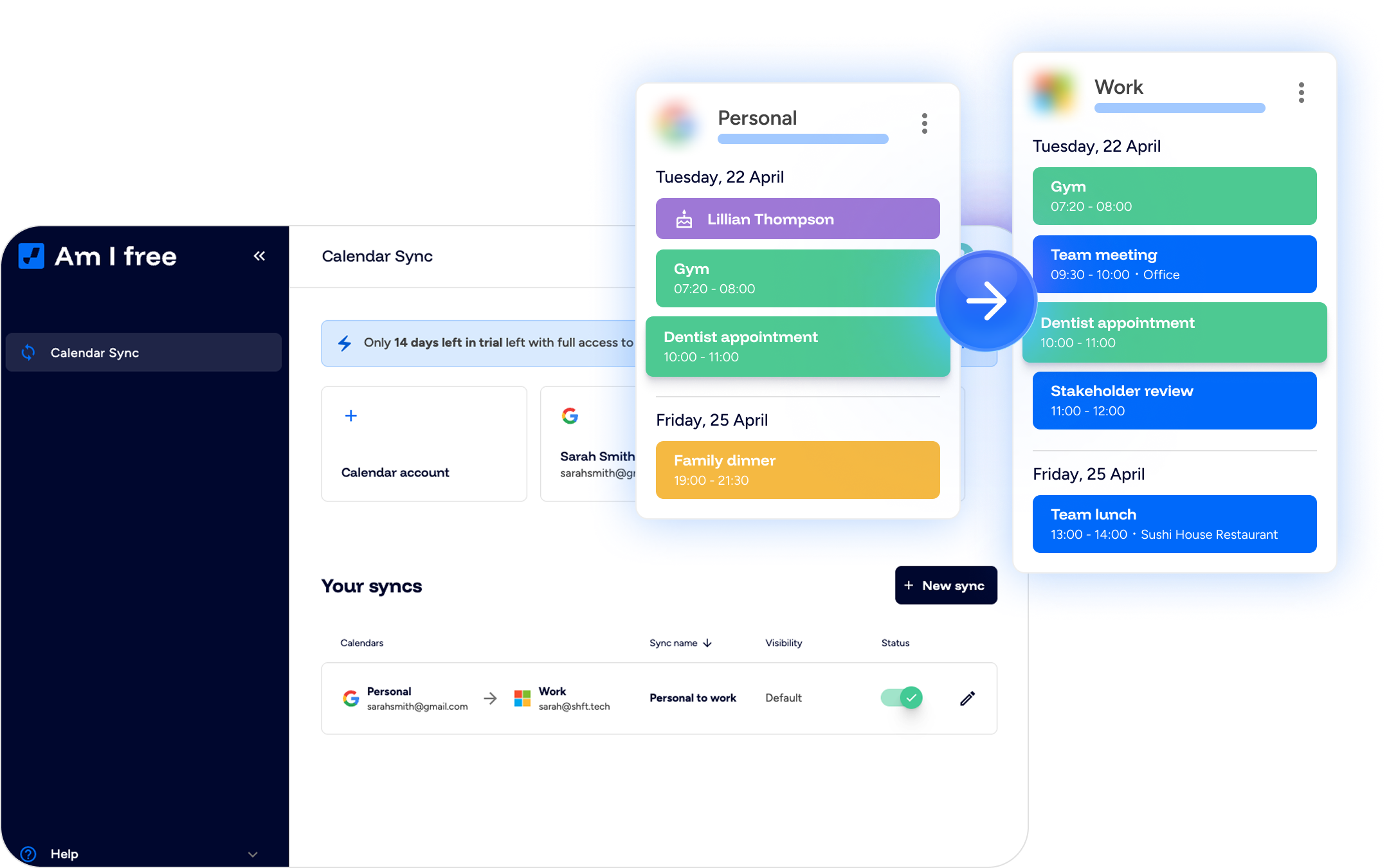
That makes it a practical starting point if you’re primarily trying to connect a work calendar and a personal calendar. New users also get a 14-day free trial with access to the full feature set, without needing to provide a credit card upfront. If you don’t upgrade after the trial, your account moves to the Free plan. For busier schedules, the Standard plan expands the setup with more calendar connections and syncs, along with custom preferences and settings.
The point isn’t to replace the calendars you already use. You continue creating and managing events in Google and Outlook as usual. Depending on your calendar settings and sync setup, those events can then be reflected in your connected calendar.
Choosing a calendar sync tool is really about choosing what you want to stop doing
Feature comparisons are useful. But there’s an easier way to think about your decision. Ask yourself what you want to stop doing. Do you want to stop checking Outlook before accepting something in Google? Stop manually creating blocks in two calendars? Stop wondering whether you’re genuinely free? Stop giving people access to an entire calendar when all they really need is accurate availability?
Those answers tell you far more about the calendar sync tool you need than a list of features ever will. The goal isn’t to build the most sophisticated calendar system. It’s to build one you don’t have to think about. If that is the setup you want, Am I Free is a practical place to start.