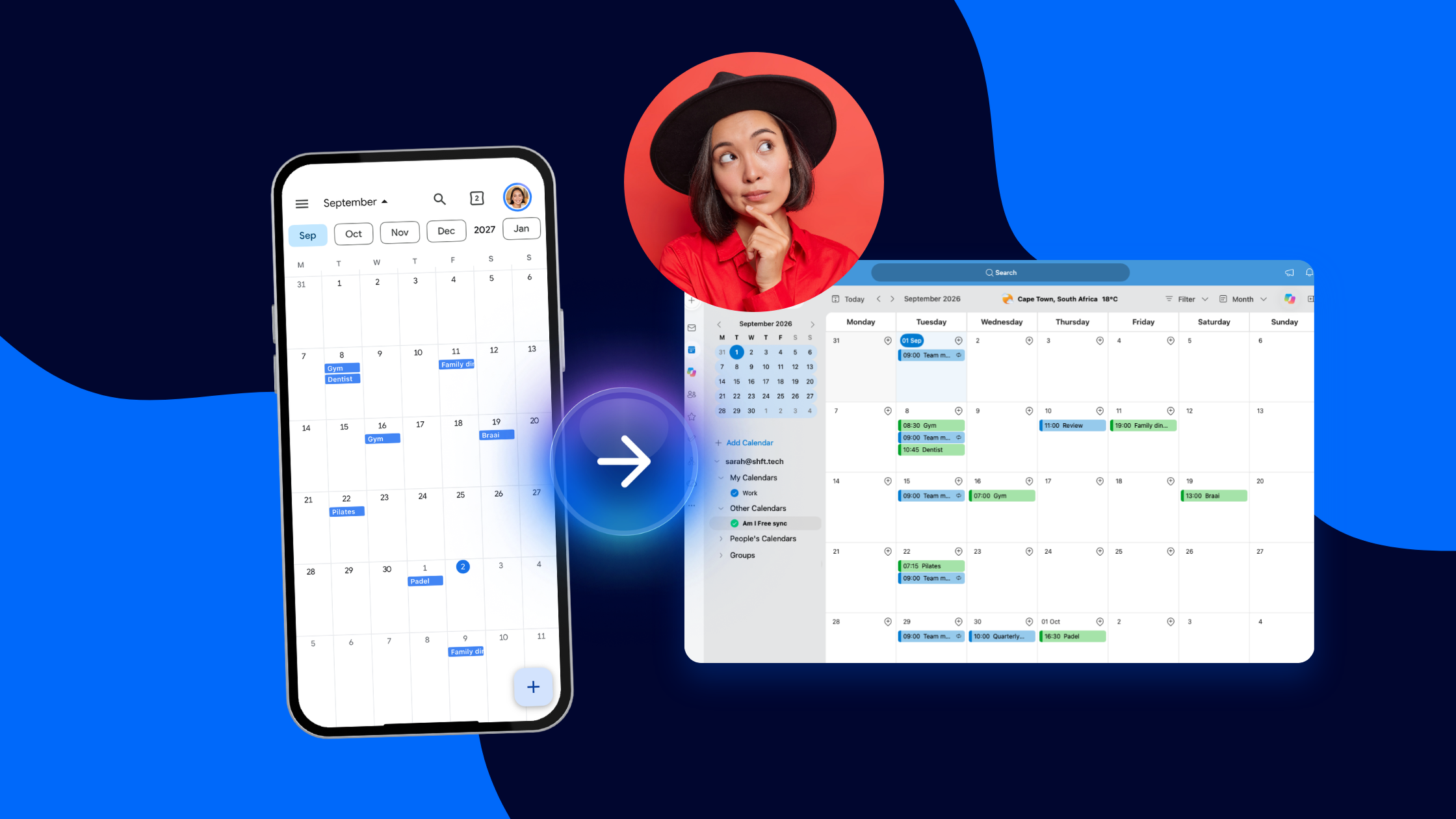
Managing more than one calendar is normal. You might have a personal Google Calendar, an Outlook calendar for work, and perhaps additional calendars for different projects or responsibilities. The problem starts when those calendars don't communicate. A personal appointment exists in Google, but your Outlook calendar still looks free. A work meeting gets added to Outlook, but you don't see it when checking your personal schedule. Before long, you're opening multiple apps just to answer a simple question:
Am I free?
Calendar syncing helps solve that problem. This guide explains how calendar syncing works, how to decide which calendars should sync, and how to set up a system that keeps your availability accurate without combining everything into one calendar.
What does it mean to sync calendars?
Calendar syncing connects two or more calendars so events can be reflected between them. For example, imagine you have a Personal Google Calendar and a Work Outlook Calendar. You create a dentist appointment in Google Calendar. With a one-way sync configured from Google to Outlook, that event can be reflected in your Outlook calendar according to your sync settings. You still create and manage the original appointment in Google. You haven’t moved your personal calendar into Outlook. The calendars remain separate. They’re simply connected.
Start by identifying the calendars you actually use
Before setting anything up, make a quick list of your active calendars. You might have:
- A personal Google Calendar
- A work Outlook calendar
- Another Microsoft account
- Multiple calendars within the same Google or Microsoft account
Then ask yourself: Which calendars need to know about each other? You don’t necessarily need to sync everything. If your main problem is that personal appointments aren’t reflected in your work availability, connecting those two calendars may be enough. Start with the problem you’re trying to solve rather than building the most complicated setup possible.
Decide which direction your calendars should sync
One of the most important decisions is which direction information should travel.
One-way calendar sync
A one-way sync sends events from one calendar to another. For example: Personal Google Calendar → Work Outlook Calendar. Events from Google can be reflected in Outlook, but Outlook events aren’t automatically sent back to Google through that same sync. This can be useful when you want to protect a particular boundary. Perhaps your work calendar needs to recognise personal commitments so people don’t book over them, but you don’t need every work event copied into your personal calendar.
What about syncing both ways?
If you want information flowing in both directions, you’ll need a two-way sync, also known as a bi-directional sync. For example: Personal Google Calendar ↔ Work Outlook Calendar. This gives both calendars greater visibility of your schedule. But more syncing isn’t automatically better. Think about what you actually need to see, where you need to see it, and how much information should move between accounts.
Choose what information should be synced
Calendar syncing isn’t only about which calendars are connected. It’s also about what happens to the events that are synced. Depending on the calendar sync tool and settings you use, synced events may include information such as:
- Title
- Date and time
- Location
- Availability
- Attendees
- Event details
- Reminders
- Event identifiers
This is where your privacy settings become important. Your work calendar may need to know that you’re unavailable from 10:00 to 11:00. It doesn’t necessarily need to know that you’re attending a doctor’s appointment. Think about what information needs to cross the boundary between calendars before turning everything on.
Set up your calendar sync
The exact setup will depend on the tool you’re using, but the basic process is usually similar.
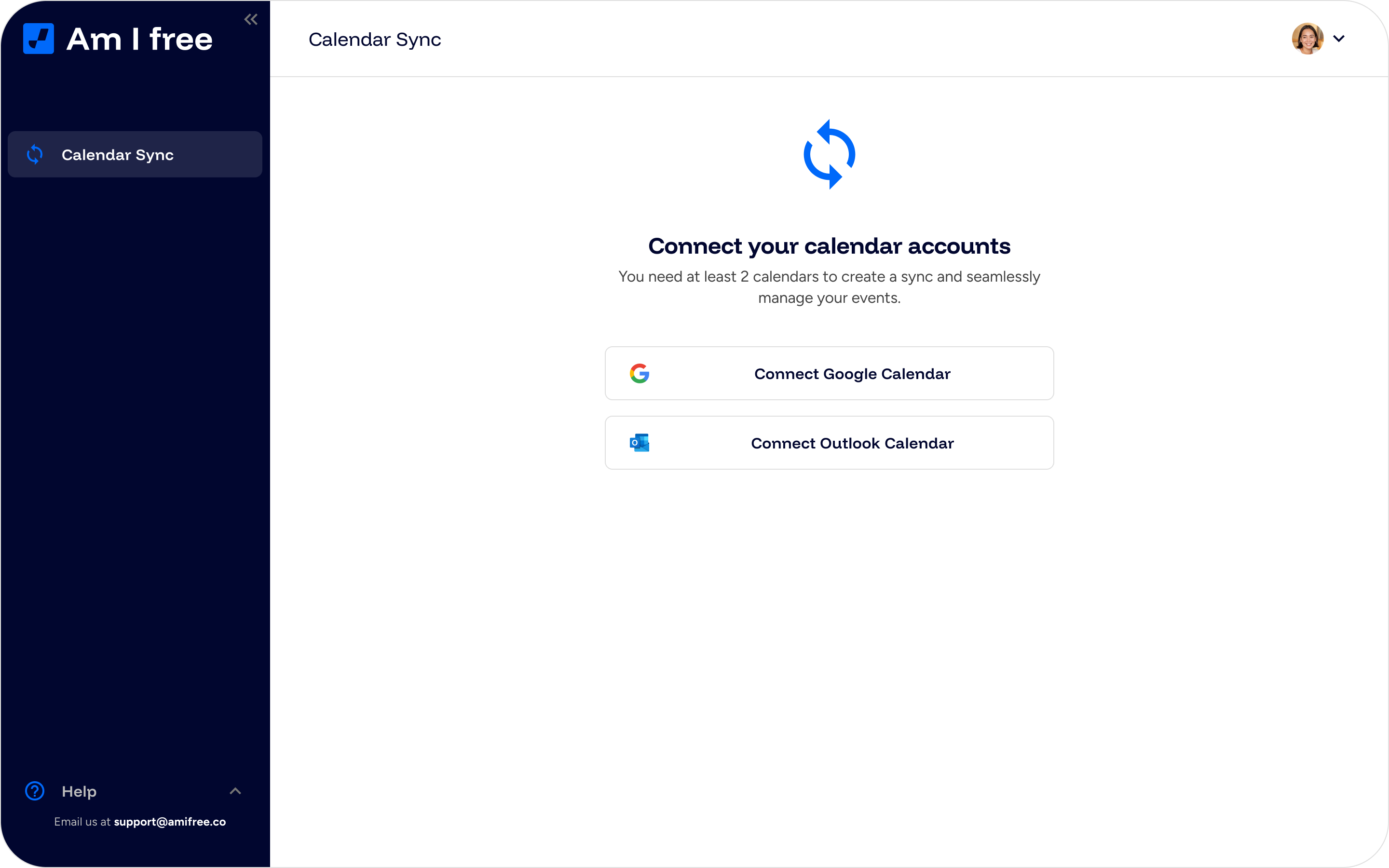
Step 1: Connect your first calendar account
Choose the calendar account you want to connect, such as Google or Microsoft. Sign in and give the calendar sync tool the permissions it requires to establish the connection.
Step 2: Connect your second calendar
Add the calendar account you want to connect it to. For example, you might now have: Google account + Microsoft account. Connecting the accounts doesn’t necessarily mean everything will immediately sync between them. You’re making the calendars available so you can configure the relationship you want.
Step 3: Choose your sync type
One-way sync: Events flow from one calendar to another. You’ll choose a source calendar where the original events come from and a destination calendar where those events will be reflected.
Two-way (bi-directional) sync: Information flows between both calendars. There is no source or destination calendar, you simply select the two calendars you want to sync.
Multi-way sync: Information flows between multiple connected calendars, allowing changes and availability to be reflected across more than two calendars. There is no single source or destination calendar, you simply select the calendars you want to keep in sync.
Step 4: Select your calendars
Choose the calendars you want to connect based on the sync type you selected.
For a one-way sync, select your source and destination calendars.
For example: Source: Personal Google Calendar → Destination: Work Outlook Calendar
For a two-way sync, simply select the two calendars you want to keep in sync.
For example: Personal Google Calendar ↔ Work Outlook Calendar
This determines how information will move between your connected calendars.
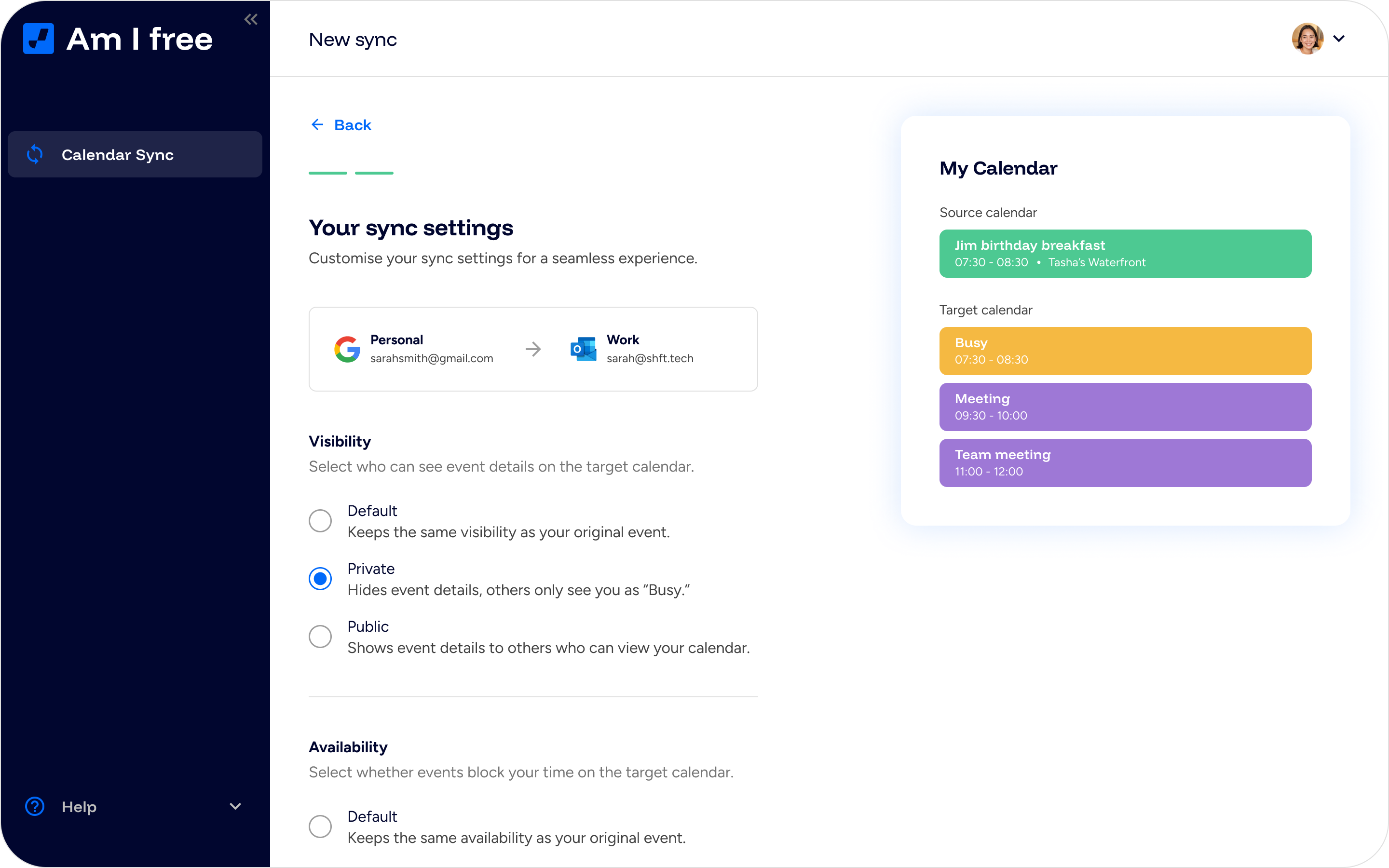
Step 5: Choose your sync settings
Review the available preferences before activating your sync. Depending on the tool you use, you may be able to control things like visibility, availability, event reminders, colours and how synced events are identified.
Step 6: Turn on the sync
Once you’re happy with your setup, activate the sync. Create or check an event in your source calendar and confirm that it appears as expected in the destination calendar. It’s worth testing this before relying on the setup for your everyday scheduling.
Why real-time syncing matters
Imagine you add a personal appointment at 14:00. Your work calendar currently shows that time as available. If your calendars only update periodically, there’s a window where someone could still schedule a meeting at 14:00. That’s why sync frequency matters. With real-time calendar syncing, changes can be reflected across your connected calendars as they happen, reducing the gap between your actual availability and the availability other people see. The goal is to reach a point where you don’t need to keep asking: “Has my other calendar updated yet?” You should be able to trust it.
Don’t confuse syncing with sharing
Calendar syncing and calendar sharing solve different problems. Sharing is about people. You might share a family calendar with your partner so you can both add school events, appointments and activities for the kids. Or you might share it with grandparents so they can see upcoming family commitments. You’re intentionally giving another person access to a calendar. Syncing is about your calendars. You might sync your personal Google Calendar with your work Outlook calendar because you want your work schedule to recognise when you’re already unavailable. Your colleagues don’t need access to your personal calendar. Your calendars simply need to communicate.
A useful way to remember the difference is: Share with people. Sync between calendars.
Keep your calendars separate where it makes sense
Syncing doesn’t mean everything has to become one giant calendar. In fact, keeping separate calendars can be useful. Your work events belong in your work account. Your personal appointments belong in your personal account. Calendar syncing allows those boundaries to remain while making the calendars more aware of each other. You continue creating events in the appropriate calendar. The sync handles the connection.
How Am I Free approaches calendar syncing
Am I Free is designed to connect Google and Microsoft calendars without requiring you to abandon the calendar apps you already use in real-time. You still create your Google events in Google and your Outlook events in Outlook. Depending on your calendar settings and sync settings, events can then be reflected in the connected calendar. For example: Personal Google Calendar → Work Outlook Calendar. Your personal appointment remains a Google event, while the sync ensures the connected Outlook calendar can reflect it according to your setup.
If you’re starting with a simple setup, the Free plan includes up to two calendar connections, one one-way calendar sync, real-time updates, and support for both Google and Microsoft calendars. That can be enough if you simply want to connect a personal calendar with a work calendar. If you eventually manage more calendars or need more syncs, you can expand your setup rather than changing the way you manage your existing calendars.
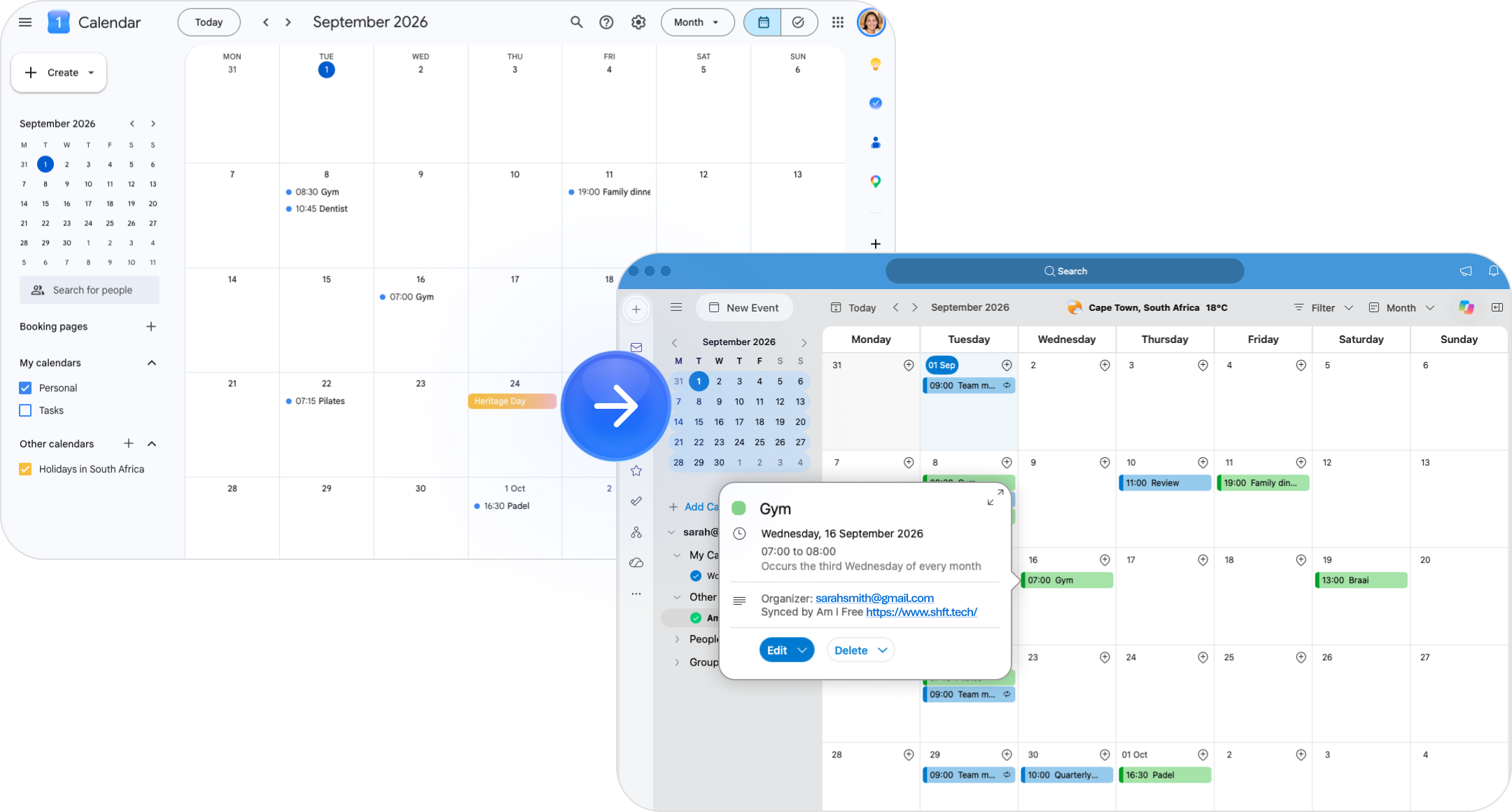
Test your setup before you forget about it
A good calendar sync should eventually become something you barely think about. But before you reach that point, test it. Create a temporary event in your source calendar.
Check that:
- It appears in the correct destination calendar.
- The date and time are correct.
- The information displayed matches your privacy preferences.
- Updating the original event produces the expected result.
- Deleting the test event behaves as expected.
Once you’re confident everything behaves as expected, you can stop manually checking both calendars every time someone asks when you’re free.
A good sync is one you stop thinking about
The point of calendar syncing isn’t to create another system for you to manage. It’s the opposite. You shouldn’t need to copy the same appointment into two places. You shouldn’t need to open Google and Outlook before accepting every invitation. And you shouldn’t need to carry commitments in your head because one calendar doesn’t know what’s happening in another. Start simple. Connect the calendars that actually need to communicate. Decide which direction information should travel. Choose settings that protect your boundaries. Then let the sync quietly do its job. Your calendars can stay separate. Your availability doesn’t have to be.