Using Outlook for work and Google Calendar for your personal life is a standard modern setup. It also creates a persistent problem: neither calendar automatically knows what is happening in the other. You might have a work meeting in Outlook while your Google Calendar still shows that time as free. Or you might add a personal doctor's appointment or family errand to Google, only to have a colleague schedule a last-minute work meeting over the same time because Outlook shows you as available.
An Outlook and Google Calendar sync bridges that gap, without exposing your personal life to your employer or clients. Instead of manually cross-checking both schedules or risking double-bookings, you can connect your accounts so availability is reflected across calendars while keeping private details strictly confidential. In this guide, we'll look at how privacy-first calendar syncing works, how to decide which direction to sync, how to sanitise what information carries over, and how tools like Am I Free make the connection seamless.
What does syncing Outlook and Google Calendar actually mean?
Calendar syncing connects your Outlook and Google calendars so time commitments from one calendar are reflected in the other. For example, you might set up:
Personal Google Calendar → Work Outlook Calendar
If you create a personal appointment in Google Calendar, an event can be reflected in your Outlook calendar according to your sync settings. You continue creating and managing the original appointment in Google; the sync simply helps Outlook recognise that the time is already occupied.
The most important part to note: syncing is different from merging your accounts. Your Google Calendar remains Google, your Outlook calendar remains Microsoft, and you continue using both as you normally would.
Why sync Outlook and Google Calendar?
The main goal isn’t to broadcast every detail of your life across both platforms, it’s to ensure your calendars don’t make scheduling decisions based on incomplete information.
An Outlook to Google Calendar sync helps you:
- Prevent embarrassing double-bookings without sharing private event titles.
- Stop manual cross-checking before accepting or proposing meeting times.
- Maintain strict boundaries between work responsibilities and personal life.
- Keep availability accurate across platforms automatically in real time.
- Protect sensitive data from being visible to company managers, delegates, or IT admins.
The core principle: Availability vs. Details
The reason many professionals hesitate to sync calendars is privacy, and that is a valid concern. A connected schedule should never mean an exposed schedule. To maintain boundaries, separate availability from event details:
- Availability: Letting others know when you are free or busy so they don’t overbook you.
- Details: Exposing what you are doing, where you are going, or who you are meeting with.
Your work Outlook calendar, for example, needs to recognise that you are unavailable from 2:00 PM to 3:00 PM. It does not need to know the title or notes of the personal commitment causing you to be unavailable.
Start by deciding what needs to sync
Before connecting anything, decide what problem you’re actually trying to solve. If your main concern is colleagues scheduling meetings over personal commitments, you might only need:
Personal Google Calendar → Work Outlook
If you also want your personal calendar to reflect your work commitments, you may need syncing in the opposite direction as well:
Work Outlook → Personal Google Calendar
Think about where events originate and where you need them to be visible. You don’t necessarily need every calendar syncing with every other calendar. A simpler setup is often easier to understand and maintain.
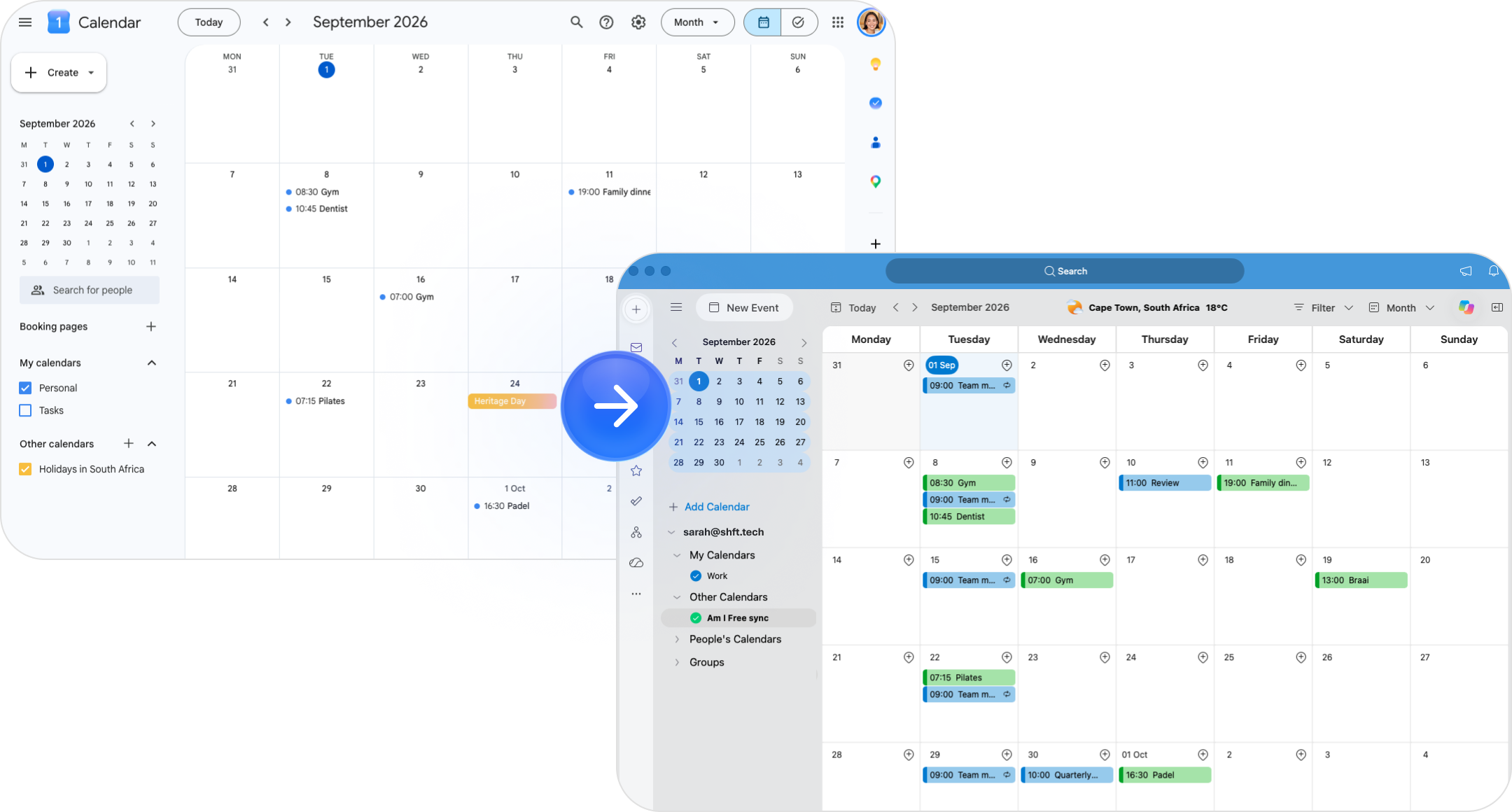
How one-way Outlook to Google Calendar sync works
A one-way sync sends calendar information in one direction. For example:
Personal Google Calendar → Work Outlook Calendar
Your personal events block off time in Outlook, but work meetings aren’t sent to your personal Google Calendar. This keeps your personal calendar clean and ensures work commitments stay strictly inside your work ecosystem.
Alternatively, if you want your personal phone to reflect work meetings so you can plan your day after hours, you can configure the opposite:
Work Outlook Calendar → Personal Google Calendar
The important thing is to choose the direction intentionally.
What about syncing in both directions?
If you want both calendars to reflect commitments from the other, you’ll need a setup that supports information moving in both directions. That might look like:
Google Calendar ↔ Outlook Calendar
This can give you broader visibility across your schedule, but more syncing isn’t automatically better. The more information that moves between accounts, the more important your privacy and event settings become. Before choosing a two-way setup, ask yourself whether you genuinely need both calendars to reflect each other or whether one-way syncing solves the problem more simply.
Choose what information appears in the other calendar
Connecting calendars isn’t only about deciding where events go. You should also consider what information should go with them. Depending on your calendar syncing tool and settings, synced events may include information such as the title, date and time, location, attendees, event details and availability. Think carefully about what belongs in each environment.
For example, your work Outlook calendar might need to recognise that you’re unavailable from 4:00 PM to 5:00 PM. It doesn’t necessarily need the details of the personal appointment causing you to be unavailable. The right settings can help you maintain accurate availability without unnecessarily blurring the line between work and personal life.
How to sync Outlook and Google Calendar with Am I Free
Am I Free is designed to connect Google and Microsoft calendars while allowing you to continue using both platforms as you normally would.
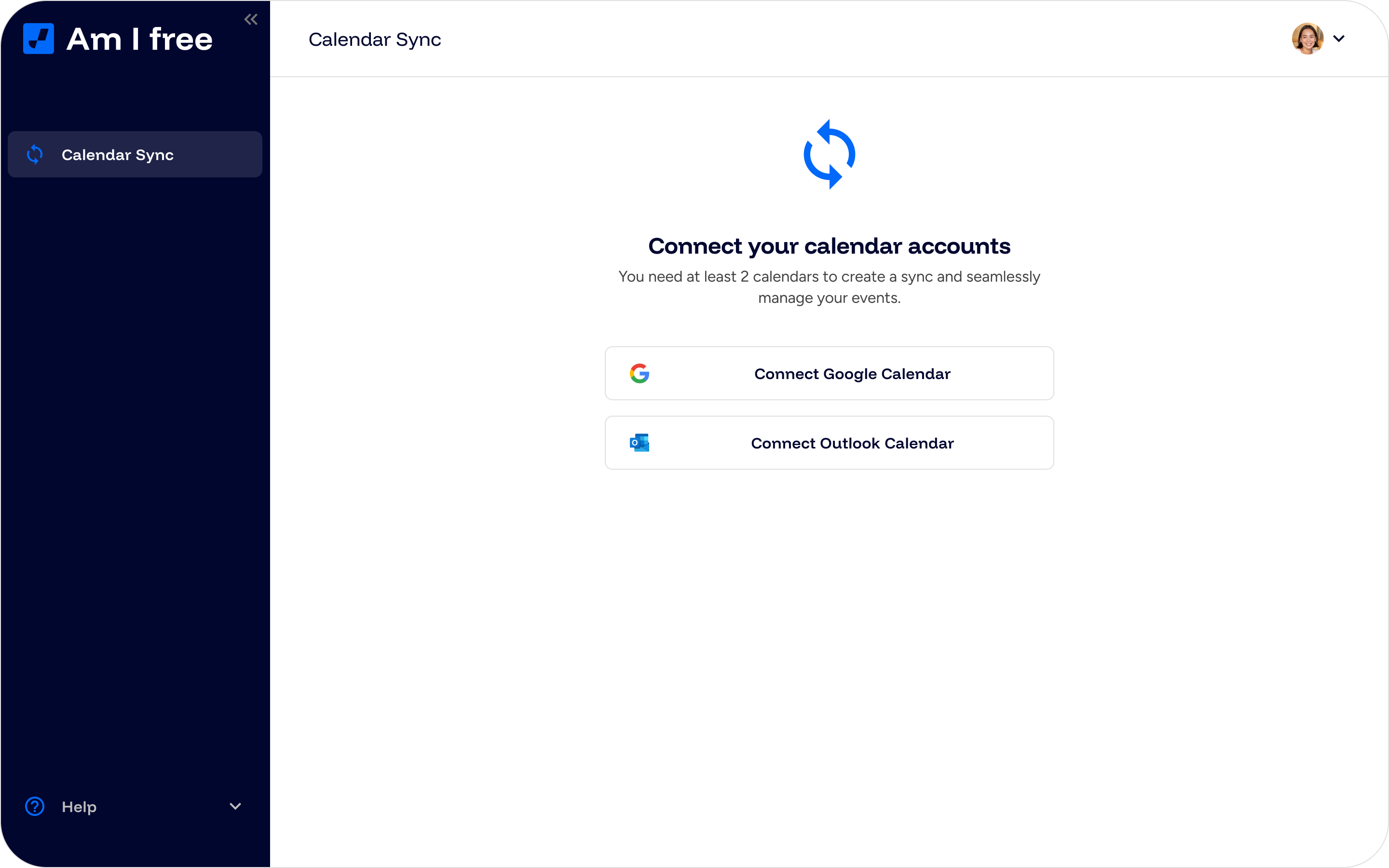
Step 1: Connect your Google account
Start by adding the Google account containing the calendar you want to sync. Sign in and provide the permissions required to establish the calendar connection.
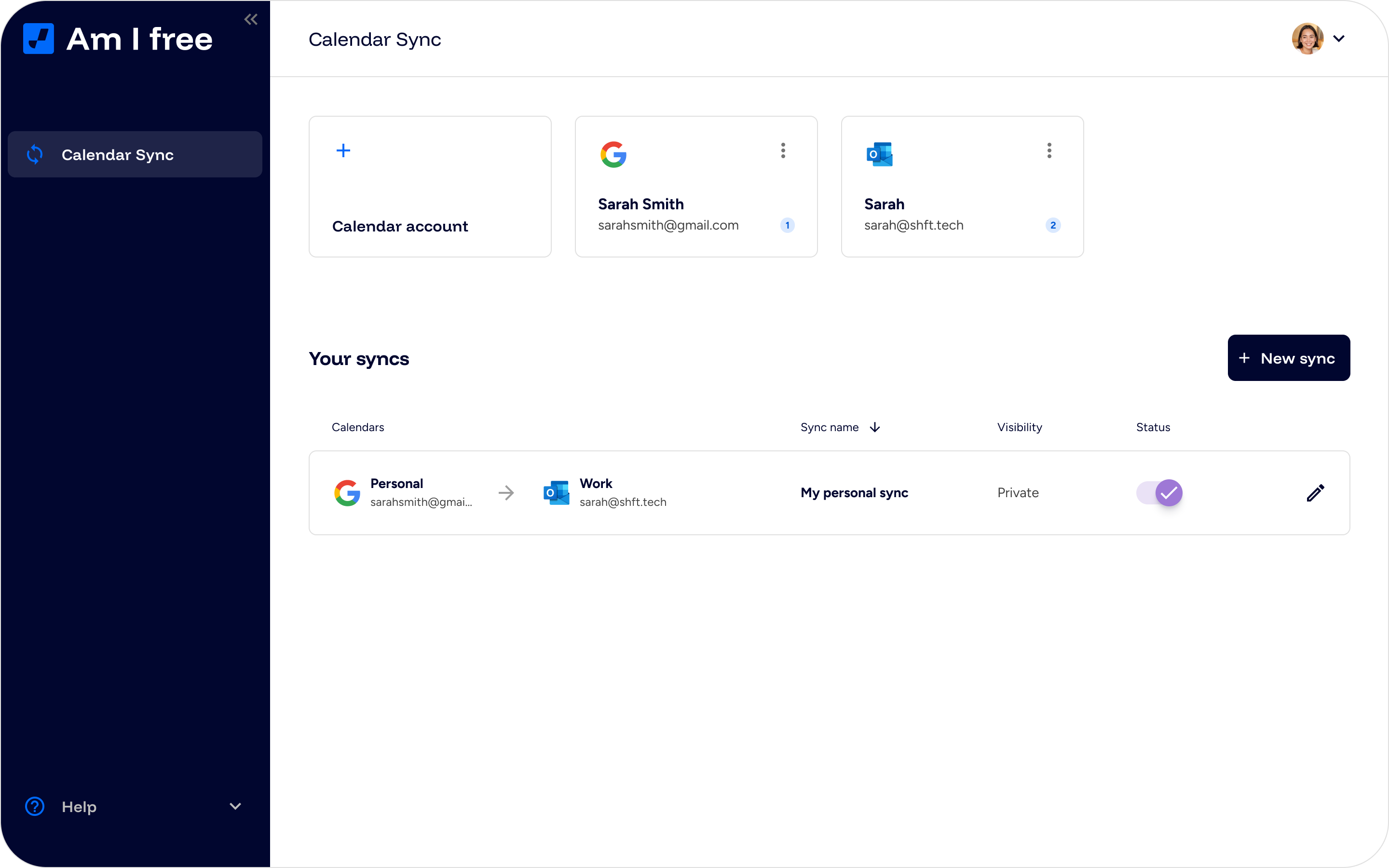
Step 2: Connect your Microsoft account
Next, connect the Microsoft account containing your Outlook calendar. Once both accounts are connected, you can choose the individual calendars involved in your sync.
Step 3: Choose your source calendar
Your source is the calendar where the original events are created. For example:
Source calendar: Personal Google Calendar
Step 4: Choose your destination calendar
Your destination is the calendar where those events should be reflected. For example:
Destination calendar: Work Outlook Calendar
Your sync would therefore look like: Personal Google Calendar → Work Outlook Calendar
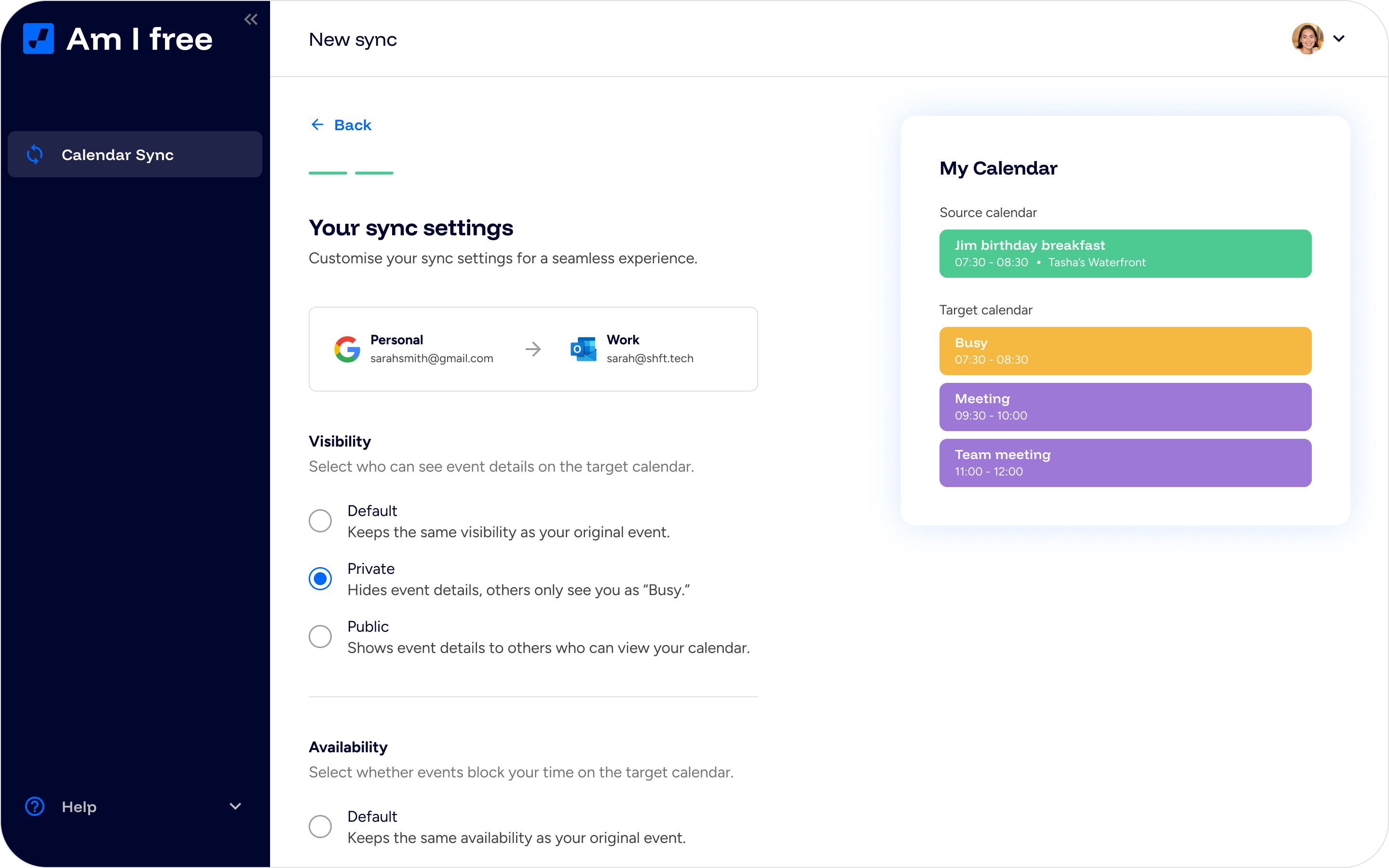
Step 5: Choose your sync preferences
Review how you want synced events to behave and appear. Depending on your available settings, this can include preferences around visibility, availability, reminders, colours and event identification.
Step 6: Activate and test your sync
Once you’ve configured the connection, activate your sync and create a test event in the source calendar. Check the destination calendar to make sure the event appears as expected. It’s also worth changing the time of the original event and checking how the synced event responds. Testing your setup gives you confidence that everything is working before you start relying on it.
What if you don’t want another calendar syncing tool?
Another option is to make one calendar viewable from the other using a calendar subscription. For example, Outlook can provide an ICS calendar link that can be subscribed to from Google Calendar, and public calendars can sometimes be added in the opposite direction. This can be useful if your goal is simply to view another calendar. However, subscribing to a calendar isn’t necessarily the same as real-time calendar syncing. Refresh times can depend on the calendar provider, and the connection may be read-only. If your main goal is keeping changing availability aligned quickly between Outlook and Google, it’s worth understanding that distinction before relying on an ICS subscription as your syncing solution.
Syncing isn’t the same as sharing
It’s easy to confuse calendar syncing with calendar sharing:
- Sharing is for people: Giving another person (like a partner or family member) access to view or edit a calendar.
- Syncing is for systems: Connecting your own accounts so two platforms respect your availability.
A helpful rule to remember: Share with people. Sync between calendars. Your co-workers don’t need direct access to your personal Google Calendar, they just need your work Outlook calendar to accurately reflect when you’re free.
Protect your work and personal boundaries
One of the reasons people hesitate to connect work and personal calendars is privacy. That’s a reasonable concern. A connected schedule shouldn’t automatically mean an exposed schedule. Before syncing, review your settings and consider what information actually needs to appear in the destination calendar. Ask yourself whether someone viewing that calendar needs to see the event title and details, or whether they simply need to understand that the time is unavailable. Your calendars can communicate without every part of your schedule becoming everyone’s business.
Do you need to create events in both Outlook and Google?
Yes. You will continue creating events naturally wherever they belong: manage work meetings in Outlook and personal commitments in Google Calendar.
The purpose of syncing isn’t to force you into a new app or to combine your accounts into one inbox. It simply runs in the background to ensure that an event created in one ecosystem automatically reserves your time in the other.
Keep your schedules aligned and your private life private
Managing Outlook and Google Calendar shouldn’t mean constantly cross-referencing two apps or exposing your personal life to work colleagues.
With the right privacy-first sync, your personal appointments reserve time on your work schedule, your availability stays 100% accurate, and your off-hours stay strictly yours. Am I Free bridges the gap with real-time updates and granular privacy controls, so you can manage two calendars without managing two versions of your availability.