Sharing your iPhone calendar can make coordinating plans much easier.
Whether you are organising family commitments, sharing a schedule with a partner, or simply giving someone visibility into when you are available, Apple gives you a few ways to do this. But there is an important distinction to understand before you start: sharing a calendar is not the same as syncing calendars.
Sharing gives another person access to your calendar, allowing them to view, and depending on your permissions, potentially edit, your events. Syncing serves a different purpose: it helps keep your availability aligned between calendars you use, without necessarily giving someone access to your full schedule. The right approach depends on what you are trying to achieve and, importantly, which calendar platform the other person uses.
In this guide, we will cover:
- How to share an iCloud calendar on iPhone
- How to share an iCloud calendar with a Google or Outlook Calendar user
- How to control what someone can do with your calendar
- Sharing vs syncing: what is the difference?
We will also look at how to choose the right sharing permissions, protect your privacy, and understand when syncing your calendars may make more sense than sharing them. By the end, you will know not only how to share a calendar on iPhone, but also which sharing method makes the most sense for your situation, and when connecting your calendars may be a better option.
How to share an iCloud calendar on iPhone
If the calendar you want to share is stored in iCloud you can invite another iCloud user directly from your iPhone.
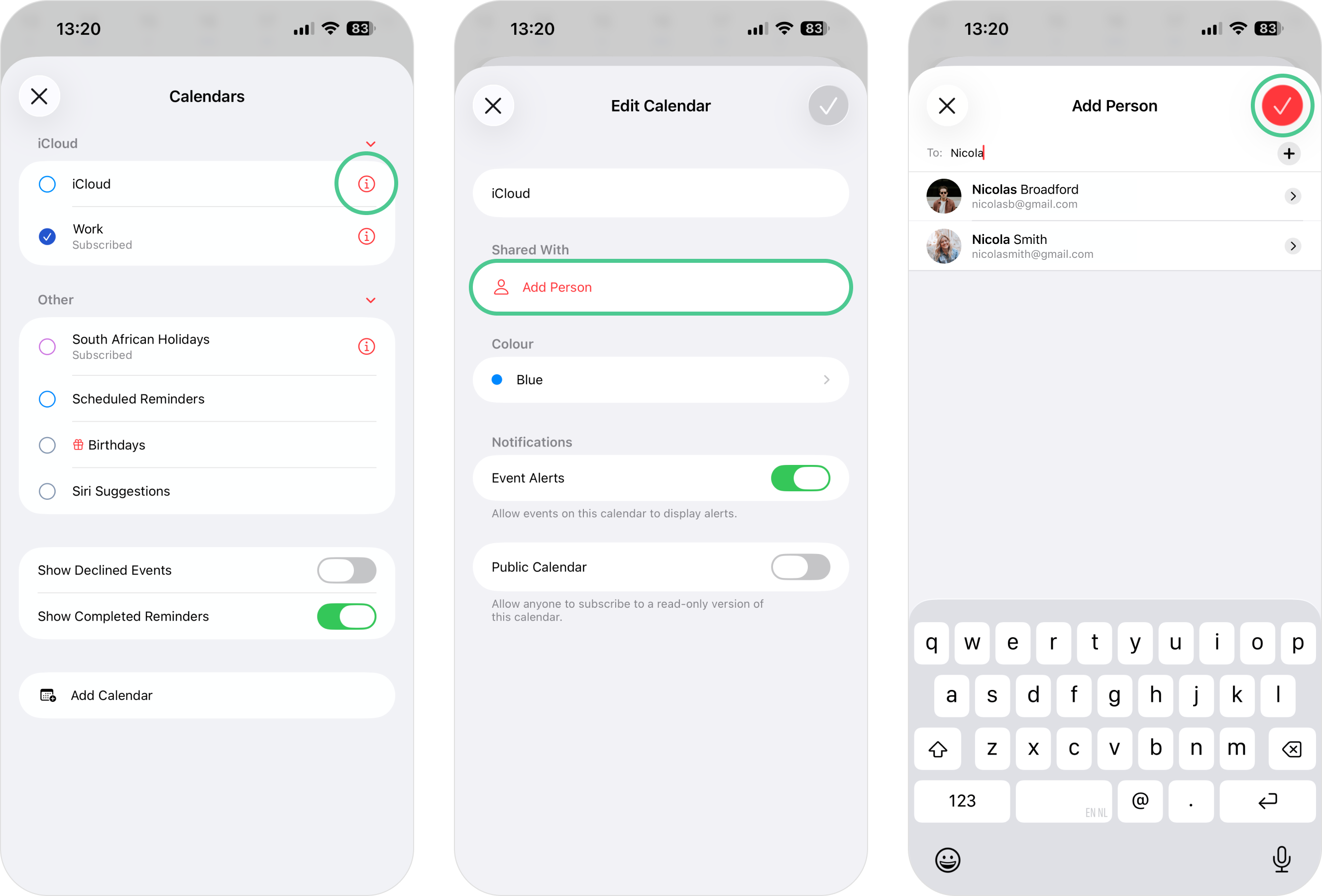
On your iPhone
These steps apply to iOS version 26 and above.
- Open the Apple Calendar app.
- Tap on the Calendar icon at the bottom of the screen.
- Find the iCloud calendar you want to share, and tap the Info icon next to your calendar.
- Select Add Person.
- Search for the person by entering their name or email address, or tap the Add icon to browse your contacts.
- Tap the Check icon to send the invite.
The person you invited will need to accept the invitation before setup is complete. Until then, you may see their status displayed as Pending. Once they accept, they will have access to the shared calendar based on the permissions you have chosen.
How to share an iCloud calendar with a Google or Outlook Calendar user
If you want someone to view your iCloud calendar through Google Calendar, you can make the calendar publicly available and provide a subscription link.
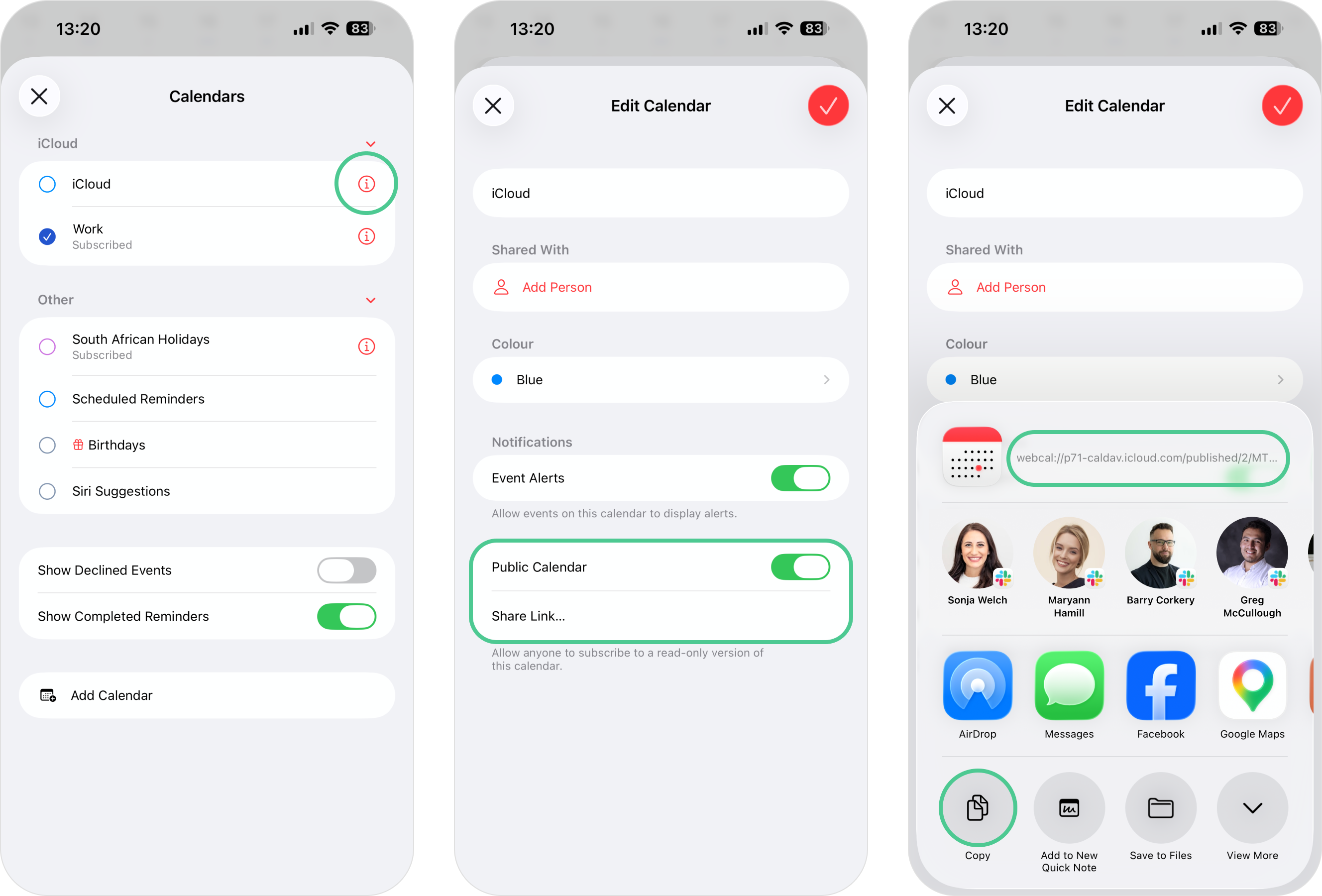
On your iPhone
- Open the Apple Calendar app.
- Tap on the Calendar icon at the bottom of the screen.
- Find the iCloud calendar you want to share, and tap the Info icon next to the chosen calendar.
- Turn on Public Calendar.
- Tap Share Link.
- Copy the Calendar URL.
Apple confirms that enabling Public Calendar creates a link that can be sent to anyone using a compatible calendar application. Anyone with that URL can subscribe to the calendar, so think carefully about the information contained in the calendar before making it public.
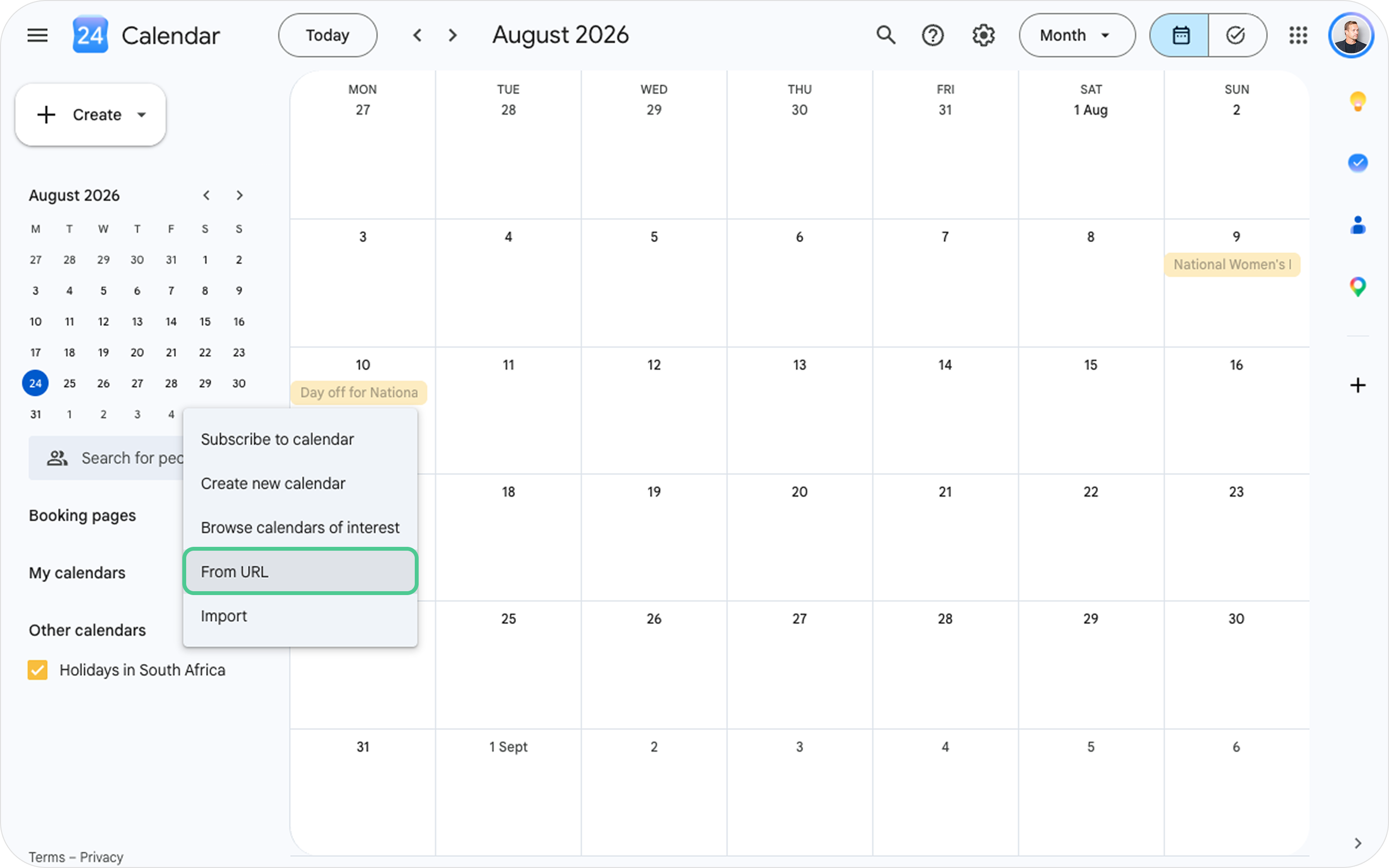
In Google Calendar
The person receiving the link will need to use Google Calendar in a computer browser to add it.
- Open Google Calendar on the web.
- Select Other calendars from the left sidebar, and click the + icon.
- Select From URL.
- Paste the calendar URL.
- Click Add calendar.
Google confirms that adding a public calendar from a URL needs to be done from a computer rather than the Google Calendar mobile app. The iCloud calendar should then appear under Other calendars. Keep in mind that this is a read-only calendar subscription, not the same as real-time calendar syncing.
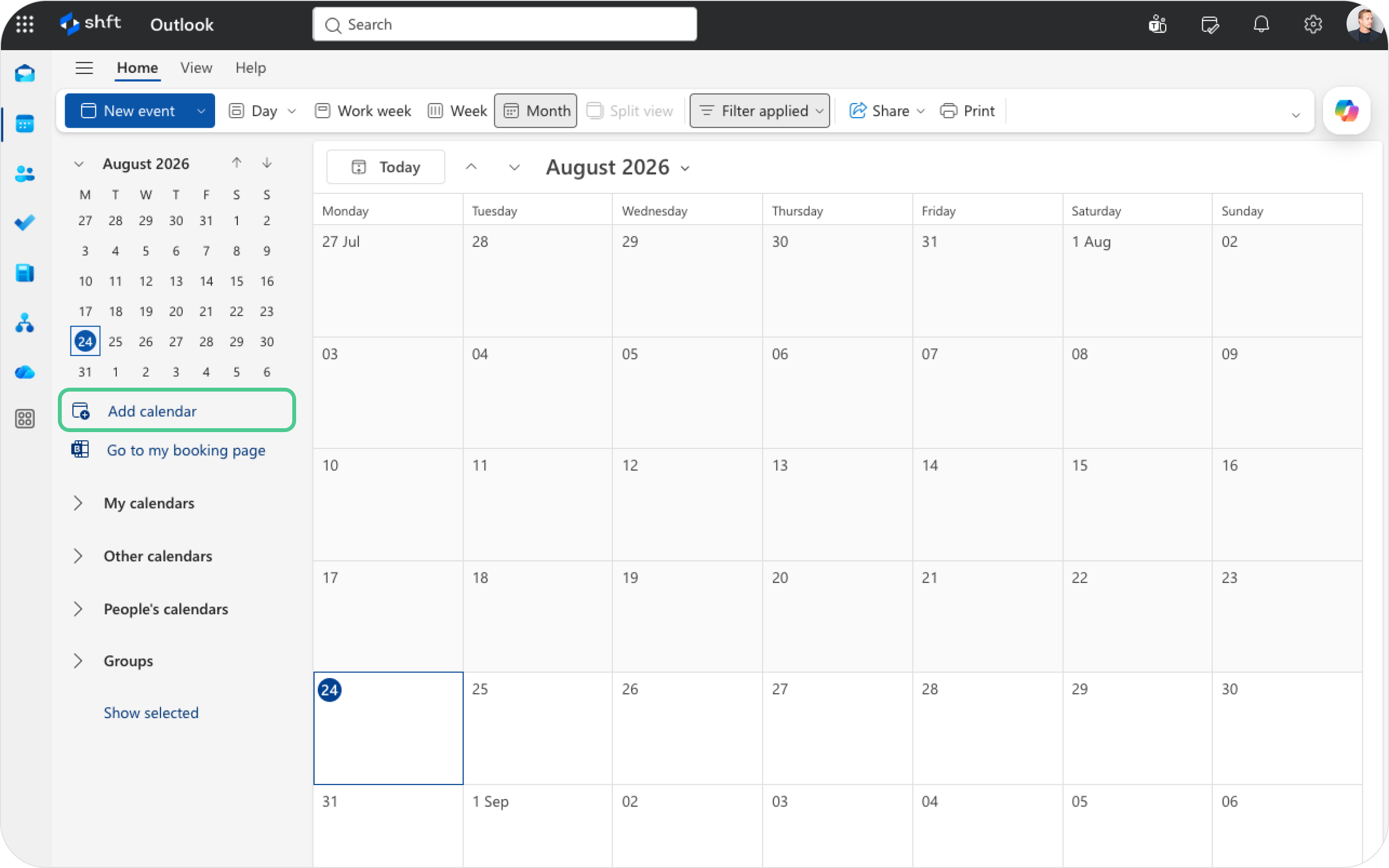
In Outlook Calendar
In Outlook Calendar on the web:
- Open Outlook Calendar on the web.
- Select Add calendar from the left sidebar.
- Select the Subscribe from web tab on the left.
- Paste the calendar URL.
- Select Import or Import and Save, depending on your Outlook version.
You can view your iCloud calendar in Outlook by subscribing to it using your iCloud calendar link. Once subscribed, your iCloud events will appear in Outlook alongside your other calendars. However, subscribing to a calendar is not necessarily instantaneous. Microsoft notes that subscribed online calendars refresh automatically, but updates can sometimes take more than 24 hours. If keeping availability aligned in real time is important to you, calendar syncing may be a better fit than relying on a calendar subscription.
How to control what someone can do with your calendar
Before sharing your calendar, think about what the other person actually needs. Do they need to collaborate with you or do they simply need to know when you are available? If you have privately shared an iCloud calendar, you can manage someone’s access via the Apple Calendar app by opening:
Apple Calendar app → Calendars → Info → Person’s name
From there, you can turn Allow Editing on or off or stop sharing the calendar entirely. Giving someone editing access means they may be able to add or change events. If they only need visibility, limiting their permissions may be the calmer, and more private, option.
Sharing vs syncing: what is the difference?
This is where calendar management can become confusing. Calendar sharing gives another person or account access to a calendar. Depending on your settings, that might mean they can:
- View your events
- See event details
- Add or edit events
- Subscribe to a read-only calendar
Sharing works well when someone genuinely needs access to the same schedule, for example, sharing a family calendar with your partner.
Calendar syncing connects your own calendars so they can work together. Depending on your calendar and sync settings, this can help you:
- Keep your availability aligned across calendars
- Reflect events from one calendar to another
- Reduce the risk of scheduling conflicts and double bookings
- Keep work and personal calendars separate while still connected
For example, imagine you have an event in your personal calendar at the same time as a meeting in your work calendar. If those calendars are not connected, you could end up double-booked because neither calendar reflects what is happening in the other. Your colleagues do not necessarily need to know why you are not available. They just need your work calendar to reflect that you are busy. That is where syncing can be more useful than sharing.
Think about privacy before you share
Calendar sharing can expose more information than people realise. Before sharing any calendar, ask yourself:
- Who needs access?
- Do they need event details or only availability?
- Do they need permission to edit?
- Is there personal information in the calendar?
- Would syncing availability solve the problem instead?
The goal should not be to make your entire schedule visible. It should be to give the right amount of visibility to the right people.
When syncing may make more sense
If your goal is not actually to give someone access to your calendar, you may not need calendar sharing at all. You may simply need your calendars to recognise when you are not available. That is where Am I Free comes in. Am I Free is designed to connect Google and Microsoft calendars so availability can stay aligned across accounts while the calendars themselves remain separate. You still create and manage events in their original calendars. Depending on your sync setup and calendar settings, events can then be reflected in another connected calendar. The Free plan gives you up to two calendar connections, one one-way sync and real-time syncing, making it a simple starting point if you manage a personal and work calendar. The important difference is that you do not have to share your entire calendar just to keep your availability accurate.
Share what needs sharing, sync what does not
Calendar sharing is useful when another person genuinely needs access to your schedule. Calendar syncing is the better choice when your calendars need to communicate with each other. Knowing the difference helps you protect your privacy, reduce scheduling conflicts, and avoid giving people more access than they actually need. Sometimes sharing is exactly the right solution. Sometimes all you really wanted was for your calendars to reflect your availability accurately. And those are two very different things.