Sharing your Outlook calendar can make coordinating schedules easier, whether you are working with colleagues, organising projects, or simply helping someone understand when you are available. But before you start, there is an important distinction to understand:
Sharing a calendar is not the same as syncing calendars.
Sharing gives another person access to your calendar. Depending on the permissions you choose, they may be able to see when you are busy, view event details, or even make changes. Syncing serves a different purpose. It connects calendars you use so events and availability can be reflected across accounts, depending on your sync setup. The right option depends on what you are trying to achieve.
In this guide, we will cover:
- How to share your Outlook calendar with another Outlook user
- How to share your Outlook calendar with a Google Calendar user
- How to share your Outlook calendar with someone outside Outlook
- How to choose the right Outlook calendar permissions
- How to change or remove calendar access
- When sharing isn’t what you actually need
By the end, you will know how to share an Outlook calendar without giving people more access than they actually need.
Before you start: which version of Outlook are you using?
Microsoft currently offers different Outlook experiences, and some of the steps for sharing and managing calendars vary depending on which one you use. Before following this guide, quickly check which version you have:
- New Outlook for Windows / Outlook on the Web: These look identical. They have a clean, modern interface and no “File” tab in the top-left corner.
- Classic Outlook for Windows: The traditional app featuring a prominent “File” tab in the top-left corner.
- Outlook for Mac: Built specifically for macOS, this version does not feature a “File” tab or matching settings menus.
How to share your Outlook calendar with another Outlook user
If the person you want to share with uses Outlook, you can send them a calendar sharing invitation directly. The exact interface may differ slightly depending on whether you are using New Outlook, Outlook on the web, or Classic Outlook, but the basic process is similar.
In New Outlook for Windows or Outlook on the web
- In Outlook open Calendar.
- Select Share or Share calendar.
- Choose the calendar you want to share.
- Click Add and enter the person’s name or email address.
- Choose their Permission level (such as Can view or Can edit).
- Click Share/OK to send the invitation.
In the Classic Outlook desktop app
- In Outlook select the Calendar icon.
- On the Home tab, select Share Calendar.
- In Calendar Properties, select Add and enter the person’s name or email address.
- Choose their Permission level (such as Can view or Can edit).
- Click OK. Outlook applies the permissions and sends the sharing invitation.
How to share your Outlook calendar with someone outside Outlook
Sharing works a little differently when the person uses Google Calendar or another calendar provider. A standard Outlook sharing invitation may not always be the simplest option, particularly if the recipient does not have a Microsoft 365 or Outlook.com account.
Instead, you can publish your Outlook calendar and provide a link that can be accessed outside Outlook. When you publish a calendar, Outlook generates two types of links:
- HTML link: Use this if you want someone to view the calendar in their web browser.
- ICS link: Use this if you want someone to subscribe to the calendar from Google Calendar or another compatible calendar application.
Publishing does not mean your calendar is automatically listed publicly. However, anyone who has access to the published link may be able to view the calendar information you have chosen to share, so check the level of detail before sending the link.
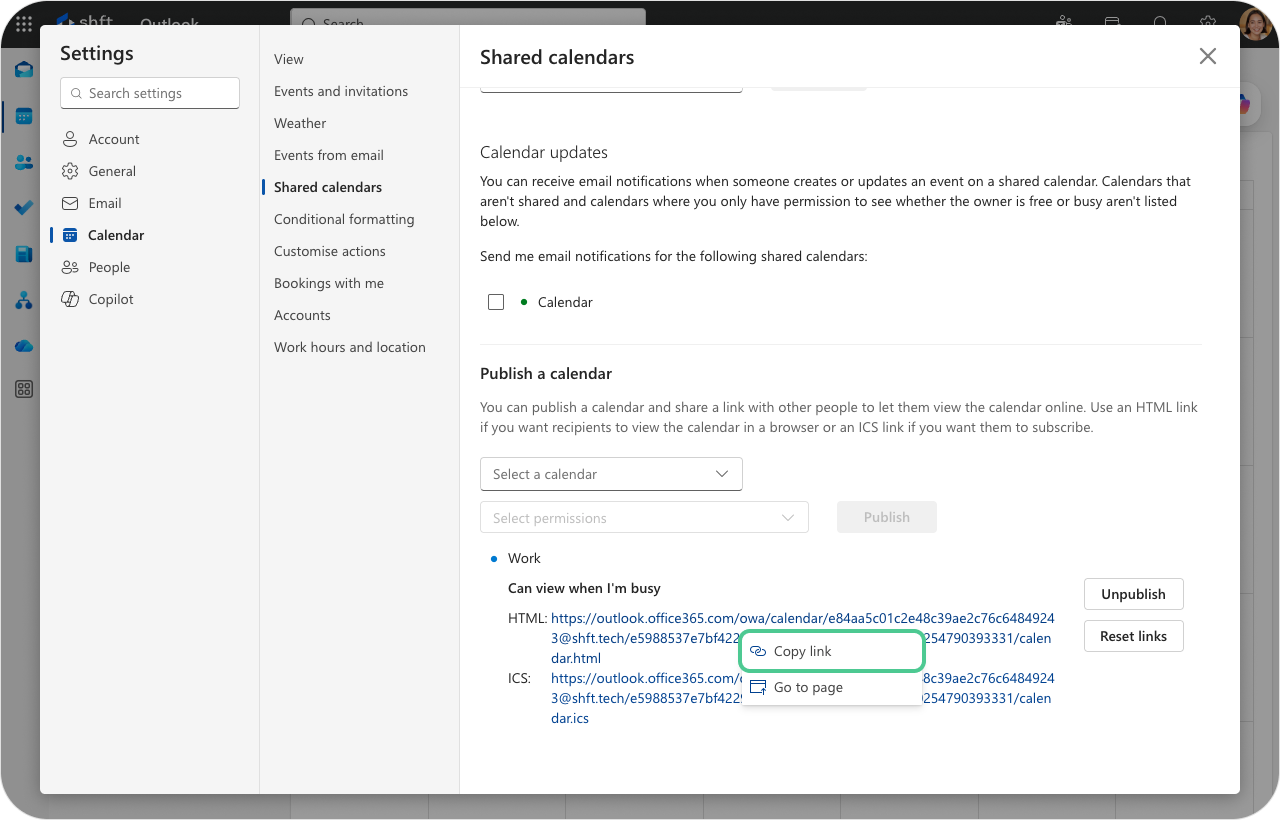
Publish your calendar in New Outlook for Windows or Outlook on the web
- Open Calendar in the left panel.
- Select the View tab.
- In the top right corner click on Settings(gear icon).
- Select Calendar, then Shared calendars.
- Scroll down to Publish a calendar.
- Select the Calendar you want to publish.
- Select Permissions and choose how much detail you want people to see.
- Select Publish.
- Copy the generated HTML or ICS link.
Publish your Outlook calendar in the Classic Outlook app
Calendar publishing for people outside Outlook is not available in the Classic desktop app. Open Outlook on the web (or switch to New Outlook for Windows) and follow the steps under Publish your calendar in New Outlook for Windows or Outlook on the web above.
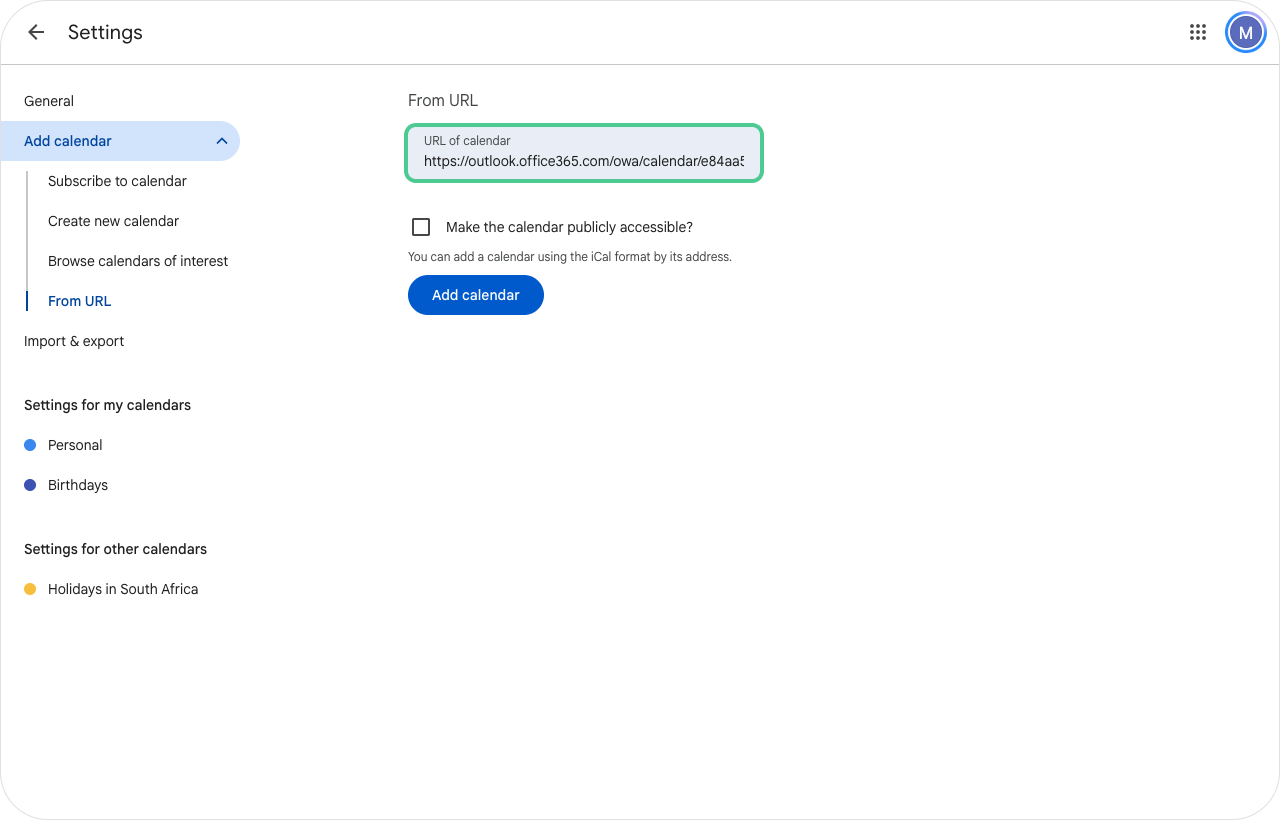
How to share your Outlook calendar with a Google Calendar user
If you want your published Outlook calendar to appear in someone’s Google Calendar, send them the ICS link you generated above. They can then add the Outlook calendar from Google Calendar on the web:
- Sign in to Google Calendar on the web.
- Find Other calendars on the left sidebar.
- Next to Other calendars, click the plus (+) icon.
- Select From URL.
- Paste the Outlook ICS URL.
- Select Add calendar.
The published Outlook calendar can then appear alongside the recipient’s other Google calendars. An ICS subscription is read-only, so the recipient can view the calendar but cannot edit the Outlook calendar through Google Calendar. Updates may also take time to appear, depending on how frequently the receiving calendar service refreshes the ICS feed.
How to share your Outlook calendar with an external Microsoft account
If the recipient has a Microsoft account, you may also be able to share the calendar directly rather than publishing it.
- Open your Calendar in Outlook on the web.
- Select the calendar you want to share and open its Sharing and permissions settings.
- Enter the person’s email address.
- Choose the appropriate permission level, such as Can view when I’m busy or Can view all details.
- Select Share.
External sharing options may vary depending on the recipient’s account and your organisation’s sharing settings.
Remember that publishing a calendar is different from privately inviting a specific person. Anyone with access to a published link may be able to view the information you’ve chosen to publish. Only publish the level of detail you’re comfortable making accessible through that link.
How to choose the right Outlook calendar permissions
When you share your Outlook calendar, you do not necessarily have to give someone access to all of your event information. Outlook provides different permission levels depending on what the other person needs to do.
The available options may vary depending on your Outlook version, account type, and organisation, but common permission levels include:
- Can view when I’m busy: shows when you are free or busy without revealing event details.
- Can view titles and locations: shows your availability as well as event titles and locations.
- Can view all details: allows the person to see the full details of your calendar events.
- Can edit: allows the person to view and make changes to your calendar.
- Delegate: allows someone to manage aspects of your calendar and meeting requests on your behalf.
If someone only needs to schedule meetings around you, Can view when I’m busy may be enough. It allows them to understand your availability without revealing the details of your appointments.
Before sharing your calendar, consider what the person actually needs to see or do. Giving someone the minimum level of access required can help keep your calendar information private.
How to change or remove calendar sharing permissions
Calendar access does not have to be permanent. If someone no longer needs access, or you simply want to reduce what they can see, you can change their permissions.
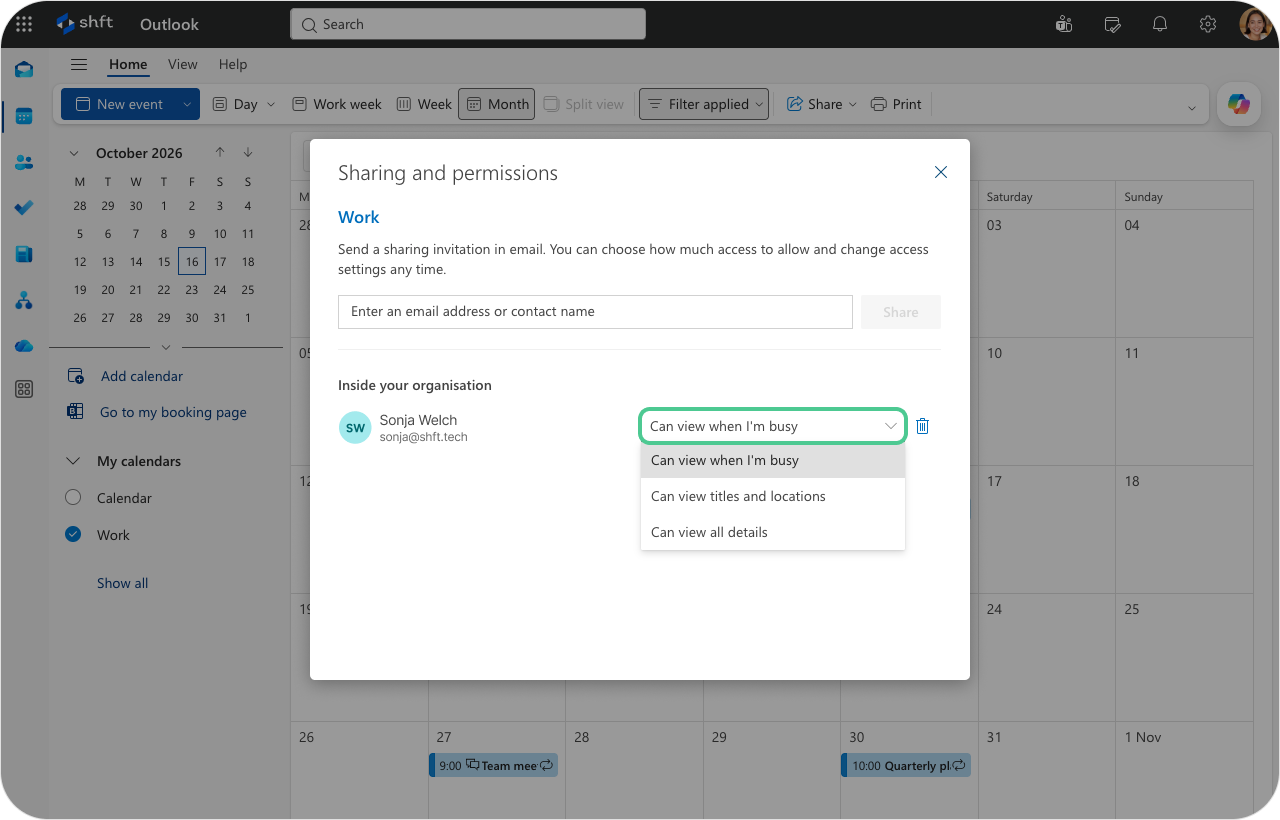
In the New Outlook for Windows or Outlook on the web
- Select the Calendar icon from the side navigation pane.
- Under My calendars, find the specific calendar you want to update.
- Right-click the calendar or click the three dots (...).
- Select Sharing and permissions or Sharing permissions.
- Find the person whose access you want to change.
- To change permissions: Click the drop-down menu next to their name or select their name and select a access level.
- To remove access: Click the trash bin icon or Remove next to their name.
- Save or close the dialog box to apply your changes.
It is worth reviewing calendar access occasionally, particularly if you have shared calendars with former colleagues, contractors, or people who no longer need visibility.
Sharing vs syncing: what’s the difference?
Calendar sharing and calendar syncing solve different problems.
Sharing is primarily about giving another person access. You might share a calendar because:
- A colleague needs visibility into your schedule.
- An assistant needs to manage your meetings.
- A project team needs access to a shared calendar.
- Someone needs to see when you are available.
Syncing is about keeping the calendars you use aligned. For example, imagine you have:
- A work Outlook calendar.
- A personal Google Calendar.
You add a personal commitment to Google. Your colleagues do not necessarily need access to your personal Google Calendar. They simply need your Outlook availability to recognise that you are not free during that time. That is where calendar syncing can be more useful than calendar sharing.
When sharing isn’t what you actually need
If you are sharing calendars simply because you need to see your commitments across multiple accounts, you may be solving the wrong problem. You might not need to share the calendar at all. You may just need your calendars to communicate. Am I Free gives your calendars a way to do exactly that. Am I Free connects Google and Microsoft calendars so events can be reflected in another connected calendar depending on your calendar settings and sync setup. You continue creating events in Outlook and Google as you normally would. The calendars remain separate, but the connection helps keep your schedule aligned.
Am I Free offers different plans depending on how many calendars you need to connect and how you want them to work together. The Standard plan provides additional calendar connections and syncs, along with custom preferences and settings, and you can use the free trial to explore the full range of features before deciding if it is right for you. If your syncing needs are simpler, you can get started with the Free plan, which includes:
- Up to 2 calendar connections
- 1 one-way sync
- Real-time syncing
- Google and Microsoft support
The Free plan offered by Am I Free can be a good starting point if you have one work calendar and one personal calendar and simply want better visibility between them.
A simple question can help you decide which option is right for you: Does another person need access to my calendar, or do my calendars simply need to work together?
Your answer will help you determine whether calendar sharing or calendar syncing is the better fit.
Know when to share and when to sync
Outlook gives you plenty of control over calendar sharing. You can share basic availability, provide more detailed visibility, give someone editing access, or publish a read-only calendar for people using other platforms.
But more visibility is not always the goal. If another person genuinely needs access to your calendar, sharing makes sense. If you are trying to keep a work Outlook calendar aligned with another calendar you manage, syncing may be the simpler approach.
Share what other people need to see. Sync what your calendars need to know.
Keeping those two purposes separate can make your schedule clearer, more private, and much easier to manage.