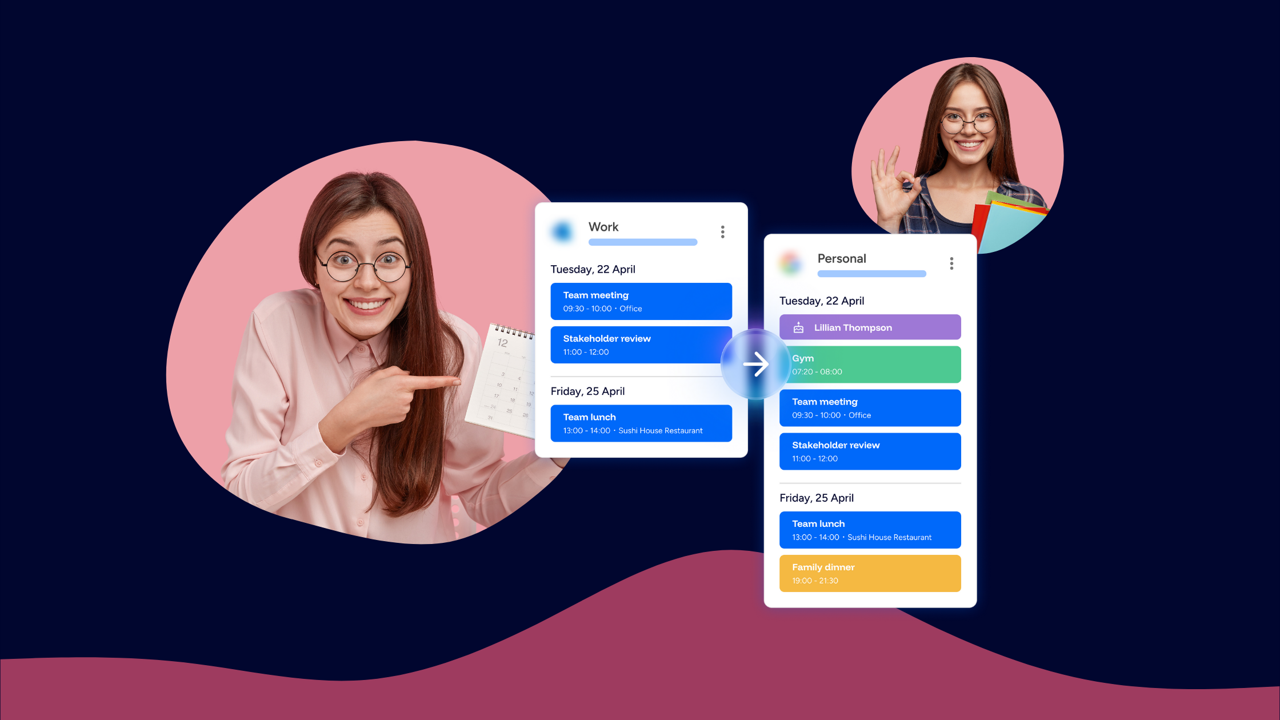
Syncing your calendar has never been easier.
Managing two calendars should not feel like managing two separate lives. If you are switching between Google Calendar and Outlook to juggle work and personal schedules, or copying events manually just to avoid double bookings, you are losing time and adding unnecessary stress.
The good news is that you can sync two calendars in under five minutes.
Am I Free was developed to create events in both Outlook and Google just like you normally do — nothing about that changes. The difference is that, depending on how you set up your sync, those events will be viewable in your other calendar. So instead of constantly switching between apps to double-check your availability, you get visibility across both, making it much easier to spot clashes and stay on top of your schedule.
A practical example: separating work and personal life
Let us say you use Outlook for work and Google Calendar for personal life.
Using a calendar syncing tool you can set up a one-way sync so your work meetings appear on your personal calendar.
Now, when you schedule dinner plans, gym sessions, or appointments, you immediately see when you are busy. You reduce the risk of double booking without sharing personal events with your employer.
Your personal events stay off your work calendar, which keeps your boundaries clear. This is one of the most common reasons people use Am I Free to sync two calendars.
Step 1: Connect your calendar accounts
The first thing you need to do is connect your calendar accounts.
You can securely connect:
- Google Calendar
- Microsoft Outlook
Once connected, Am I Free can access the calendars you choose and prepare them for syncing.
There is no exporting files. No importing links. No manual duplication.
Your calendars are securely linked and ready to work together.
Step 2: Create a sync and choose your sync type
Next, create a new sync. When you sync calendars, you can choose between a one-way, bi-directional, or multiway sync.
One-way sync
Events move from a source calendar to a target calendar, but not the other way around.
This works well if you want to:
- Show work events on your personal Google Calendar
- Keep one calendar as your main schedule
- Maintain privacy between accounts
- Avoid editing events in both places
If something changes in the source calendar, the target updates automatically. Changes made in the target do not flow back.
Think of it as a live copy that stays up to date. This is one of the most common ways professionals use a calendar sync between Outlook and Google Calendar while keeping clear boundaries.
Bi-directional sync
Events update in both calendars. If you edit, add, or delete an event in either calendar, the change reflects in the other. Both calendars stay fully aligned.
This is ideal for:
- Freelancers managing multiple clients
- Consultants working across Google Workspace and Microsoft Outlook
- Business owners who operate in more than one system
- Anyone who needs two calendars synced in real time
Am I Free makes bi-directional calendar syncing straightforward, without complicated integrations or technical setup.
Multiway sync (Coming soon)
Best for managing three or more calendars. Multiway sync keeps several calendars aligned at the same time. Instead of connecting just two calendars, every calendar in the group updates the others automatically.
Add or edit an event in any one of them and the change appears everywhere.
This is ideal if you:
- Manage multiple client calendars
- Run a business with separate operational calendars
- Use different accounts for different projects
- Balance work, freelance, and personal schedules
With a multiway sync in Am I Free you no longer have to think about which calendar you updated. Everything stays connected automatically, in real time.
Step 3: Select the calendars you want to sync
After choosing your sync type, select the specific calendars you want to connect.
For example, you might choose:
- Your work Outlook calendar as the source
- Your personal Google Calendar as the target
Or you might connect both calendars in a bi-directional setup.
This step ensures you are syncing exactly what you need — nothing more and nothing less.
Step 4: Edit your sync settings
Finally, review and adjust your sync settings.
Depending on how you configure your sync, your calendars can securely share event details such as:
- Event title
- Date and time
- Location
- Attendees
- Event descriptions
If you are looking for an easy way to sync your calendars automatically, your calendar syncing tool handles all the heavy lifting in the background.
What happens when plans change?
After setup, everything runs automatically.
When you:
- Add a meeting in Outlook
- Reschedule an event in Google Calendar
- Cancel an appointment
Am I Free keeps your calendars aligned based on the sync type you selected.
You do not need to reopen the app every time. It works quietly in the background so you can focus on your work instead of managing multiple scheduling systems.
Can you sync more than two calendars?
Yes.
Depending on your plan, Am I Free allows you to create multiple syncs. This is useful if you need to sync multiple Google Calendars, multiple Outlook calendars, or a mix of both.
Whether you are an individual professional or part of a growing team, our calendar syncing tool is designed to scale with the way you manage time.
Start with two calendars. Once you see how seamless syncing calendars can be, expanding is simple.
The bottom line
Syncing two calendars does not require IT support, spreadsheets, or constant checking.
With a calendar sync you can:
- Sync Google and Outlook calendars
- Combine work and personal calendars
- Avoid double bookings
- Keep your availability accurate
- Save time every week
And you can set it all up in under five minutes.
If you are tired of managing your schedule twice, Am I Free might be the simplest productivity upgrade you make this year.